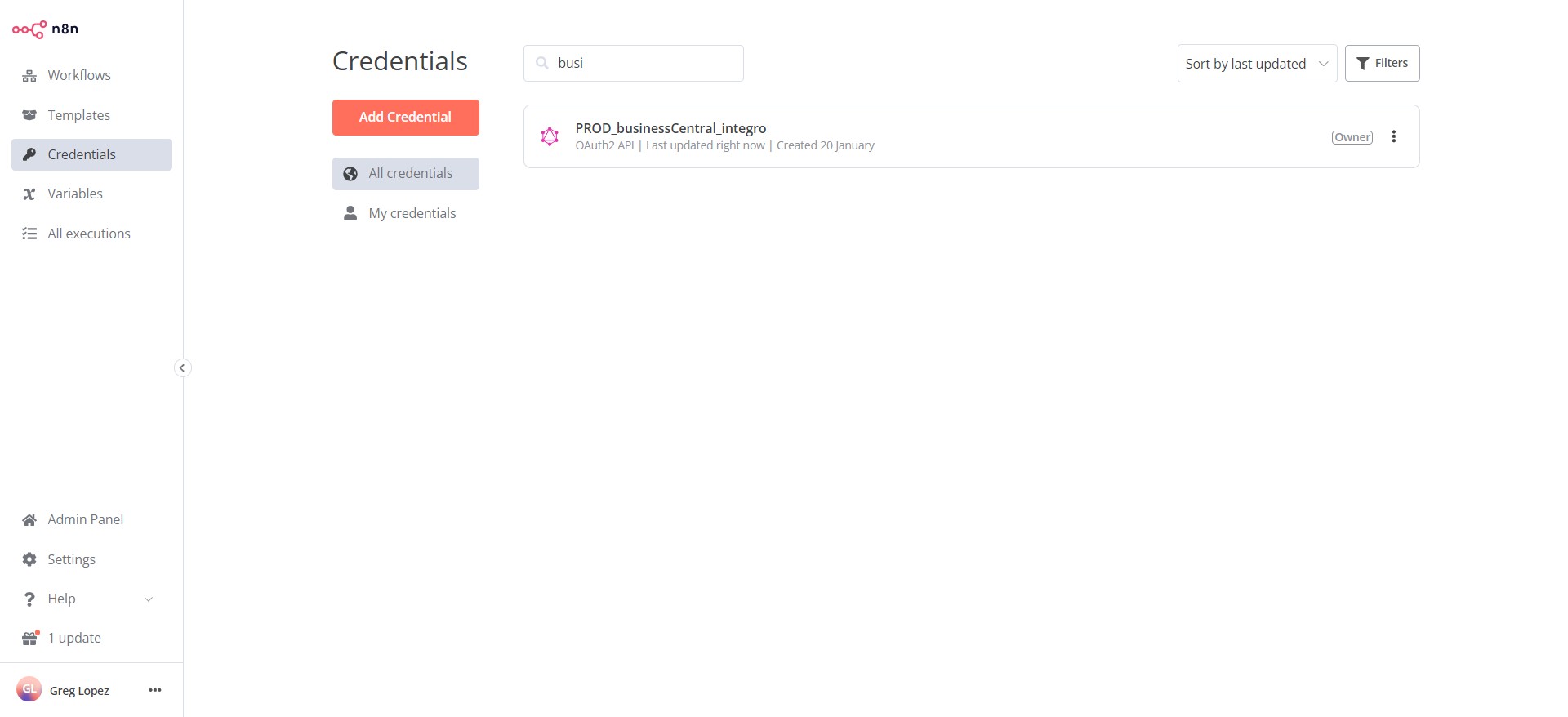
MS Business Central | Create an OAuth2 Connection
Quick guide to create a Microsoft Business Central API connection for n8n.io
Azure Portal Application
Navigate to Azure Portal
Click on the search bar
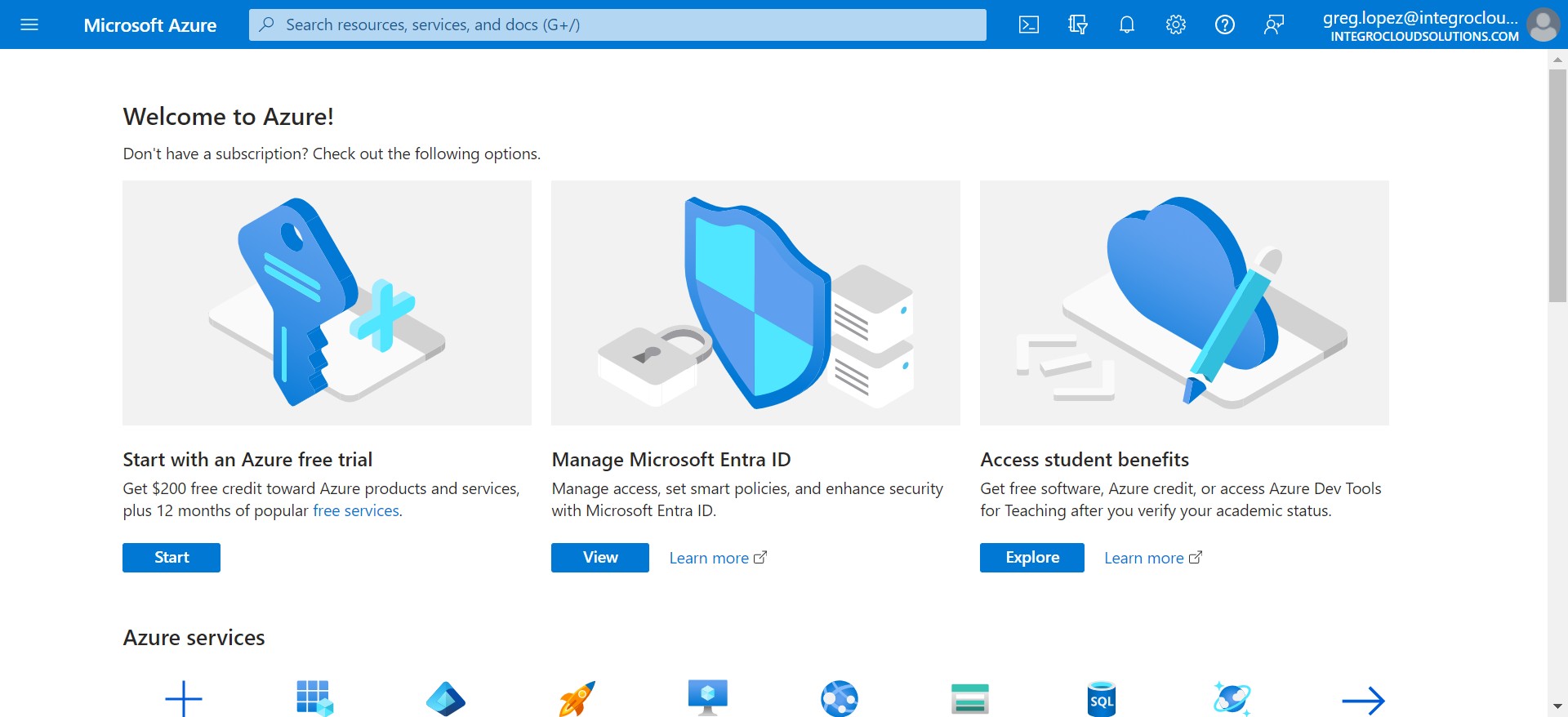
Click on "App registrations"
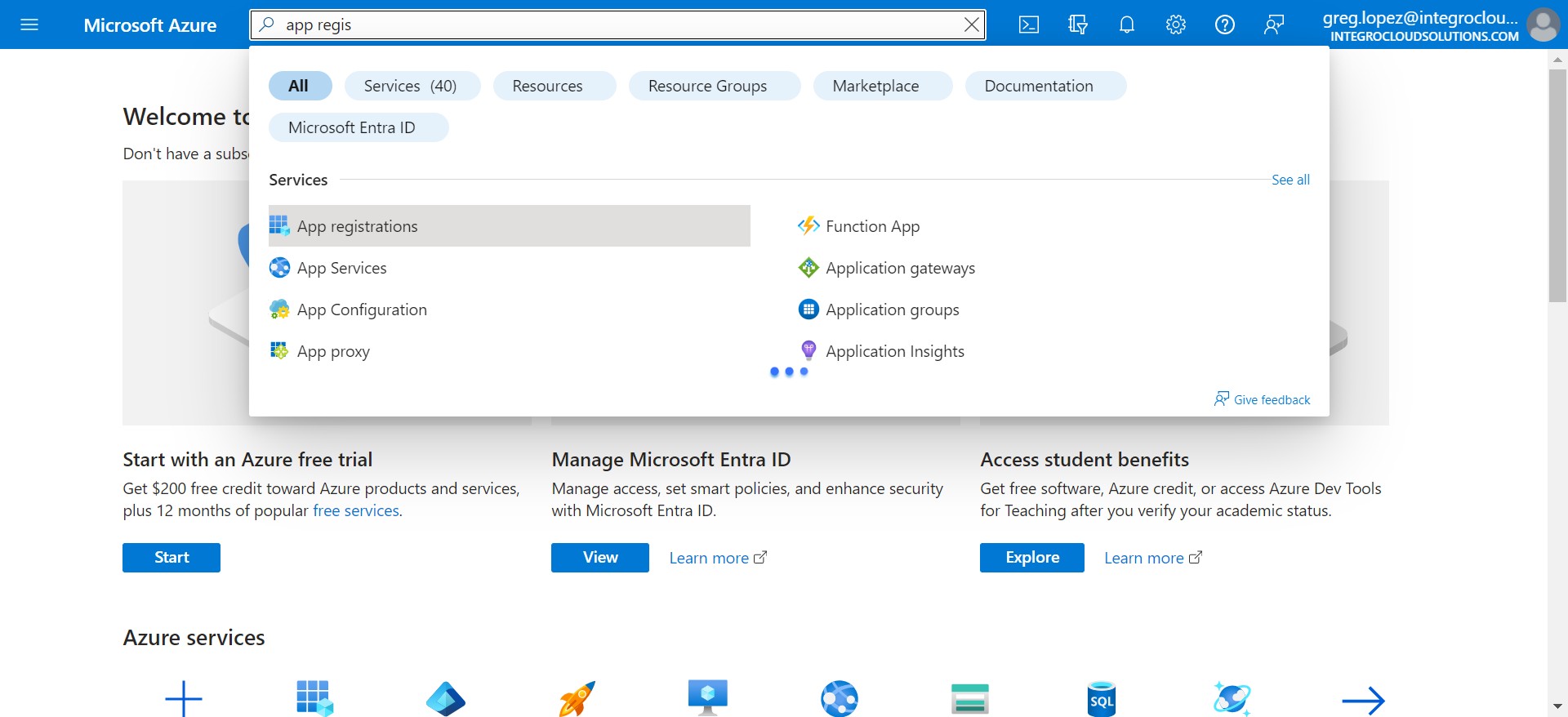
Click on "New registration"
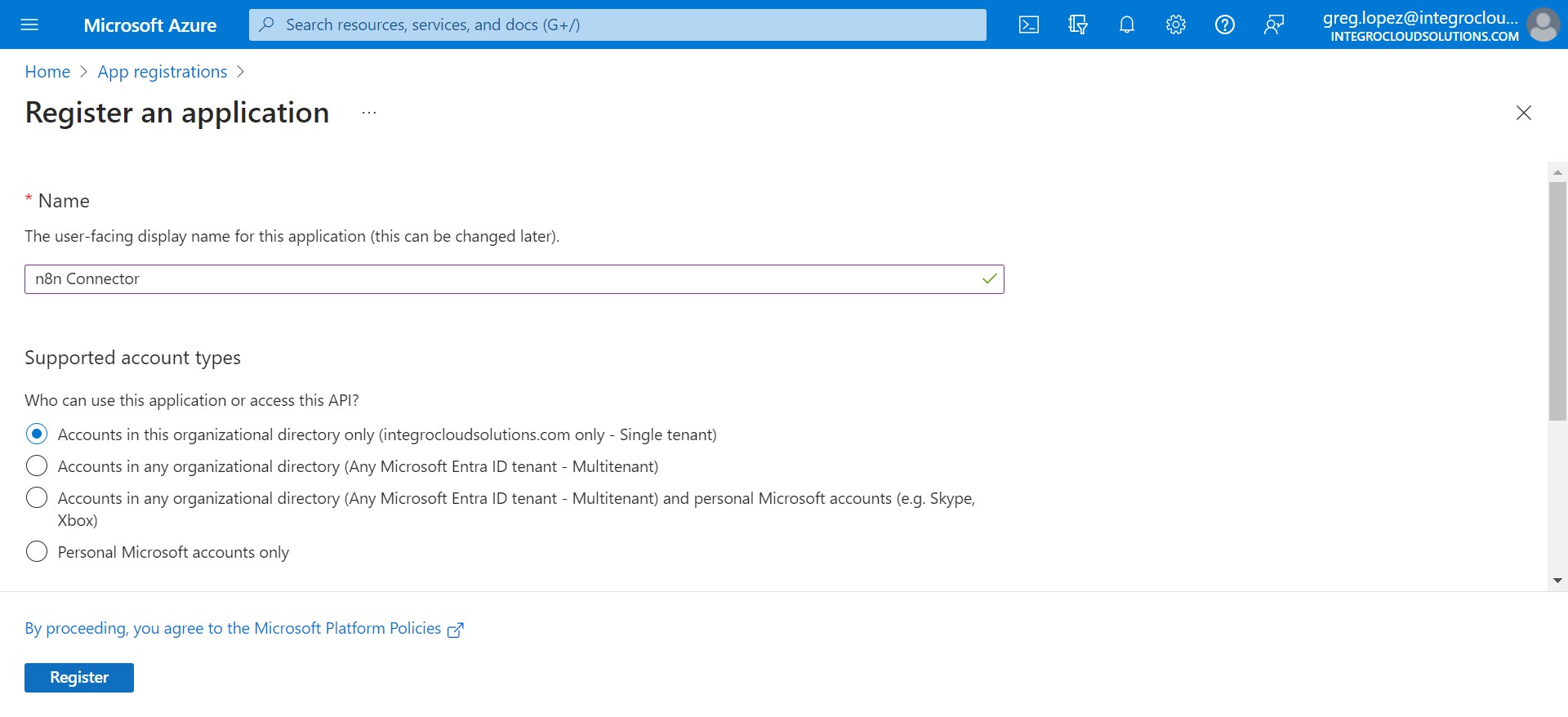
Enter Application Name: "n8n Connector" and select "Single tenant"
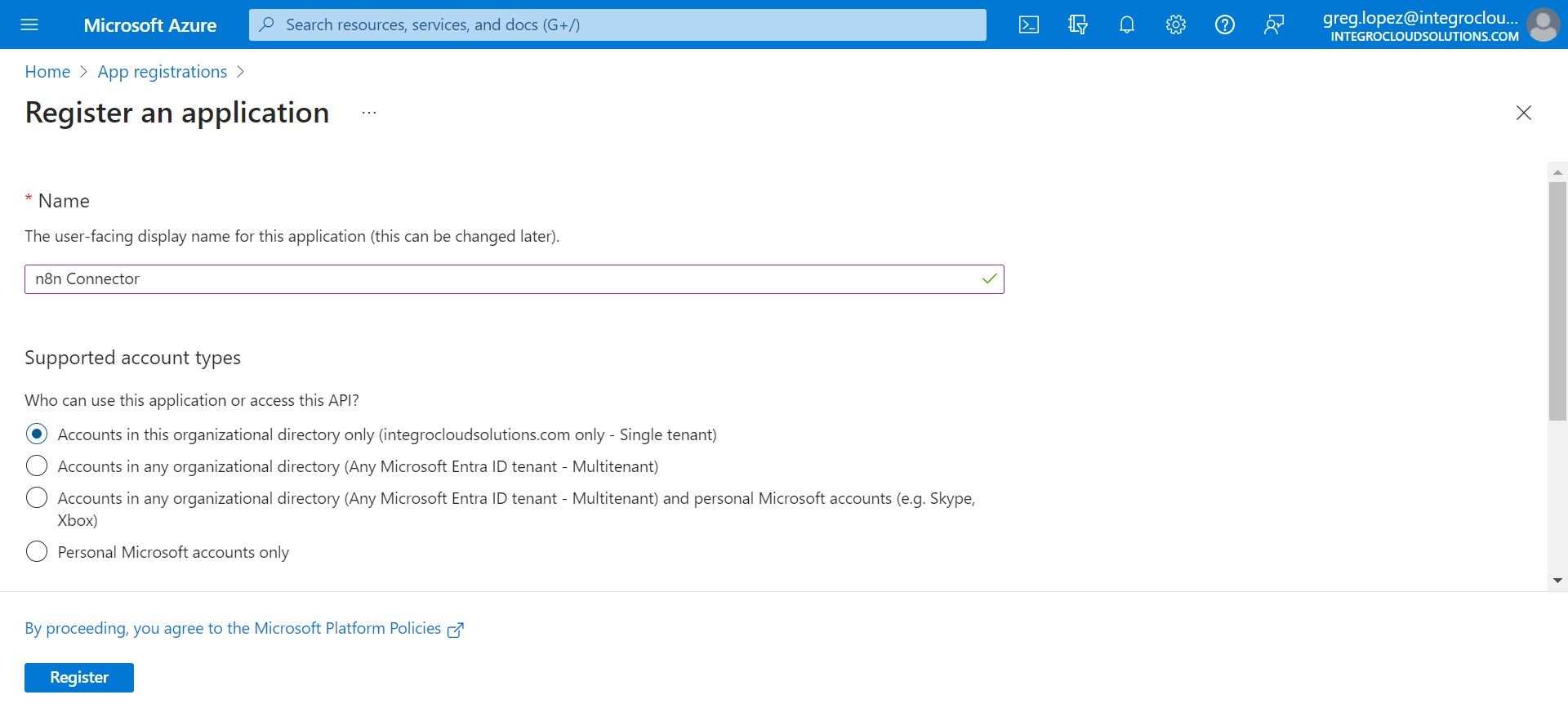
Click on "Register"
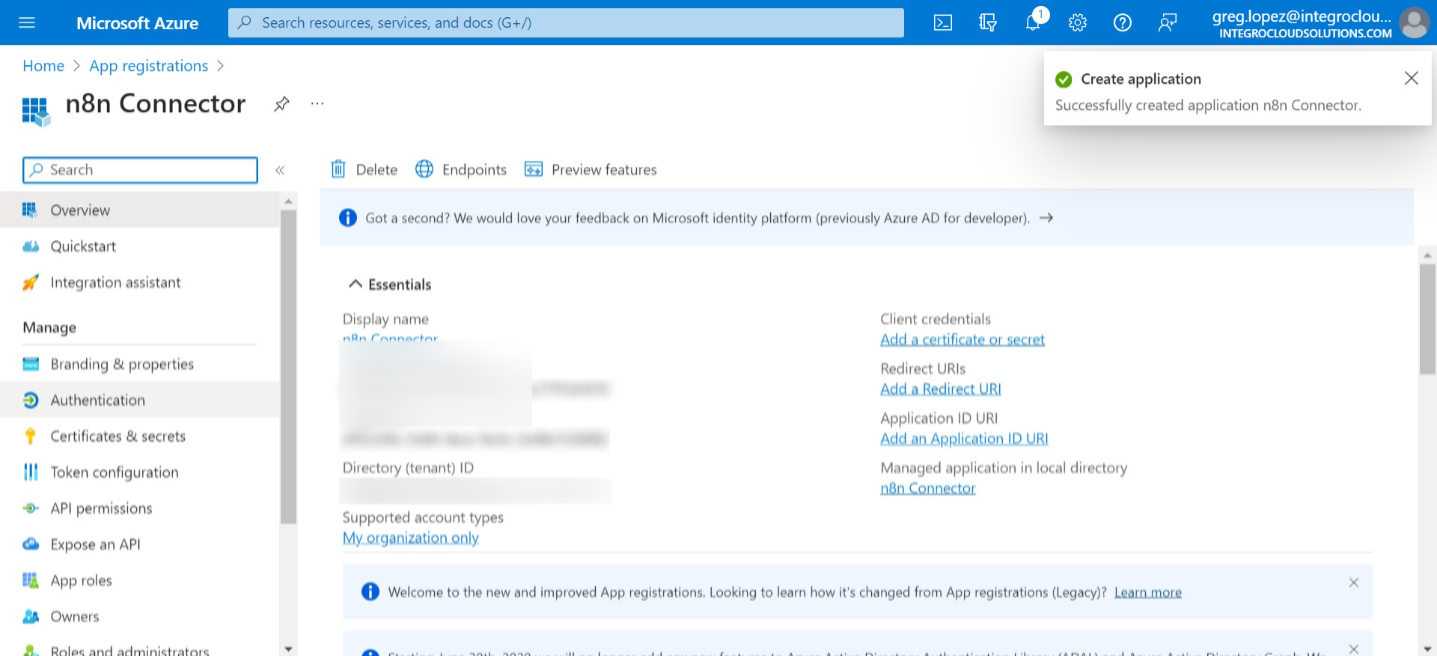
Click on "Authentication"
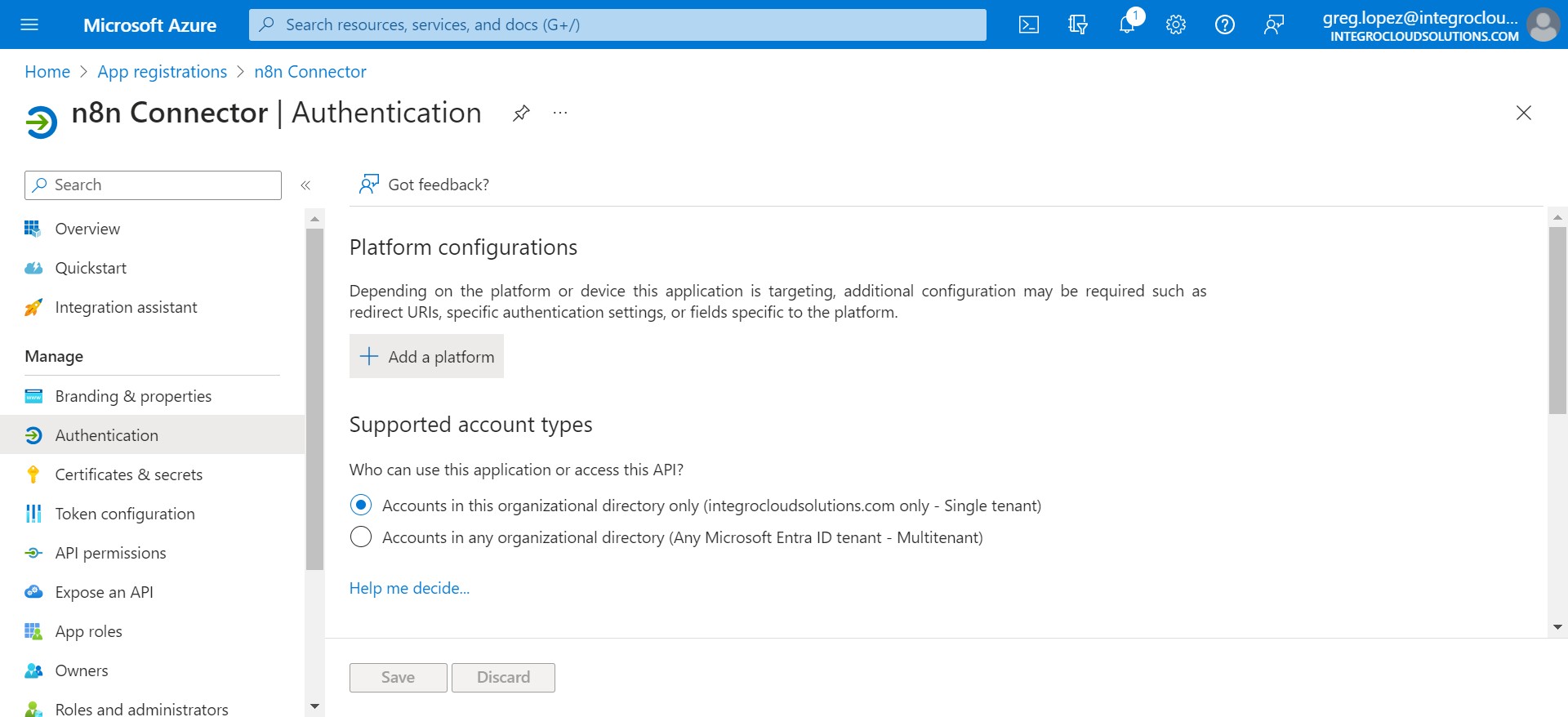
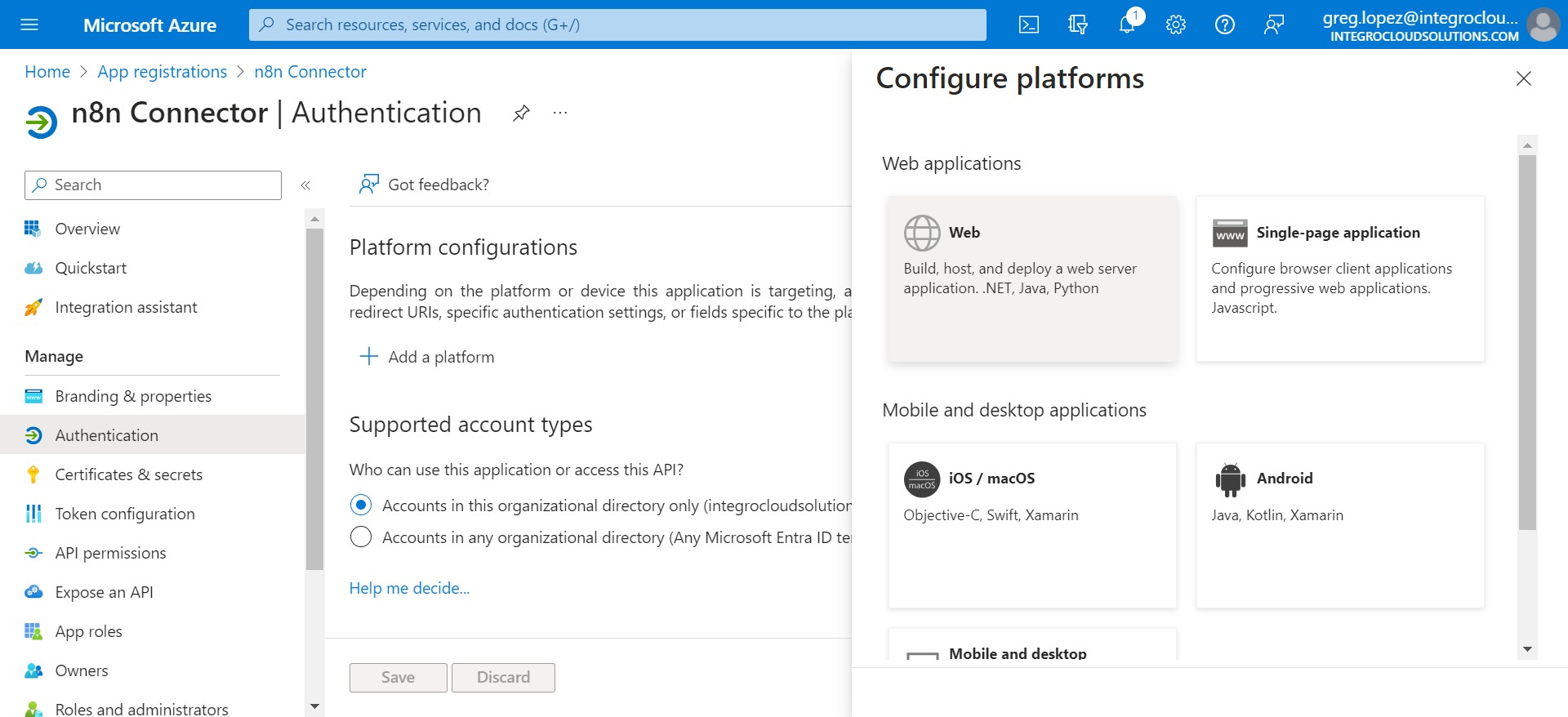
Click on "Add a platform"
Select "Web Application"
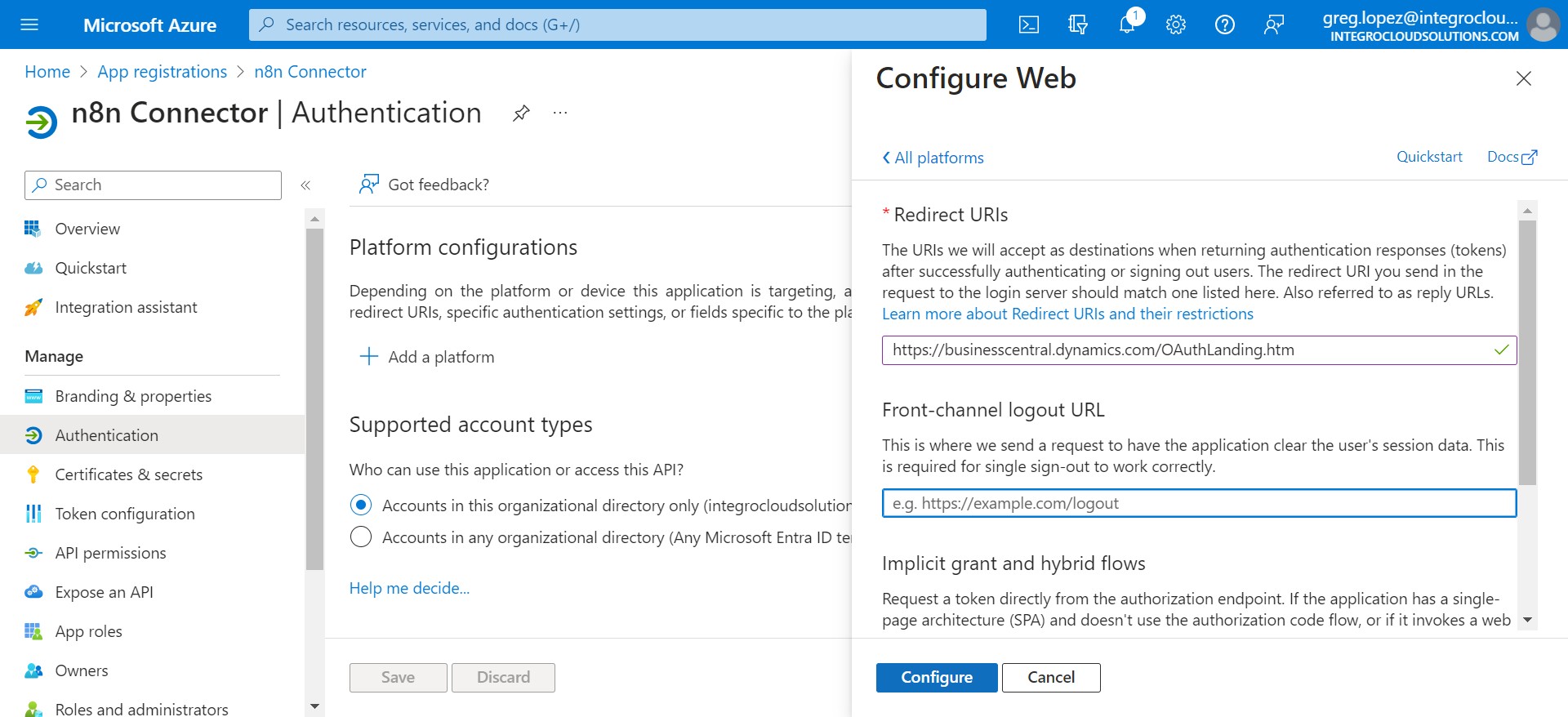
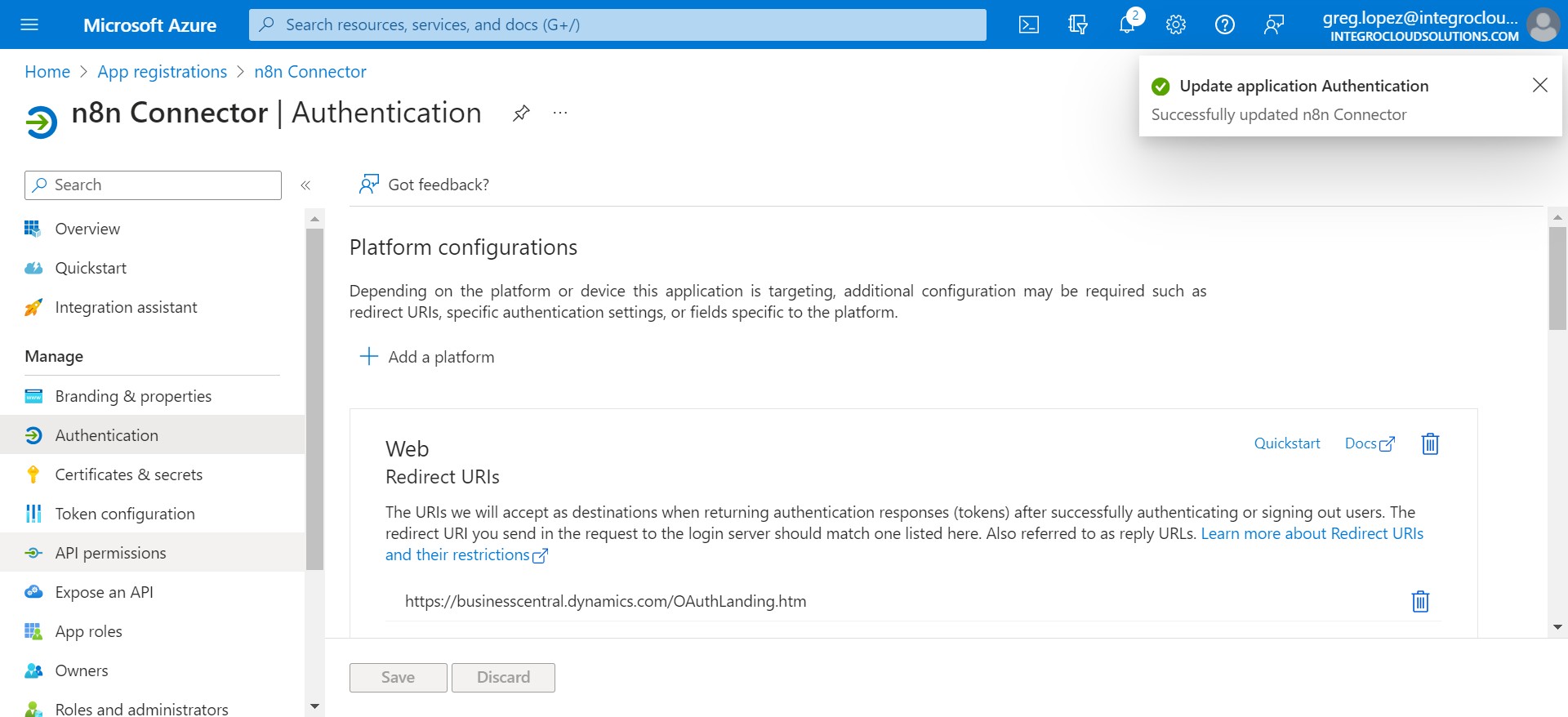
Enter Redirect URIs as: "https://businesscentral.dynamics.com/OAuthLanding.htm" & Click on Configure
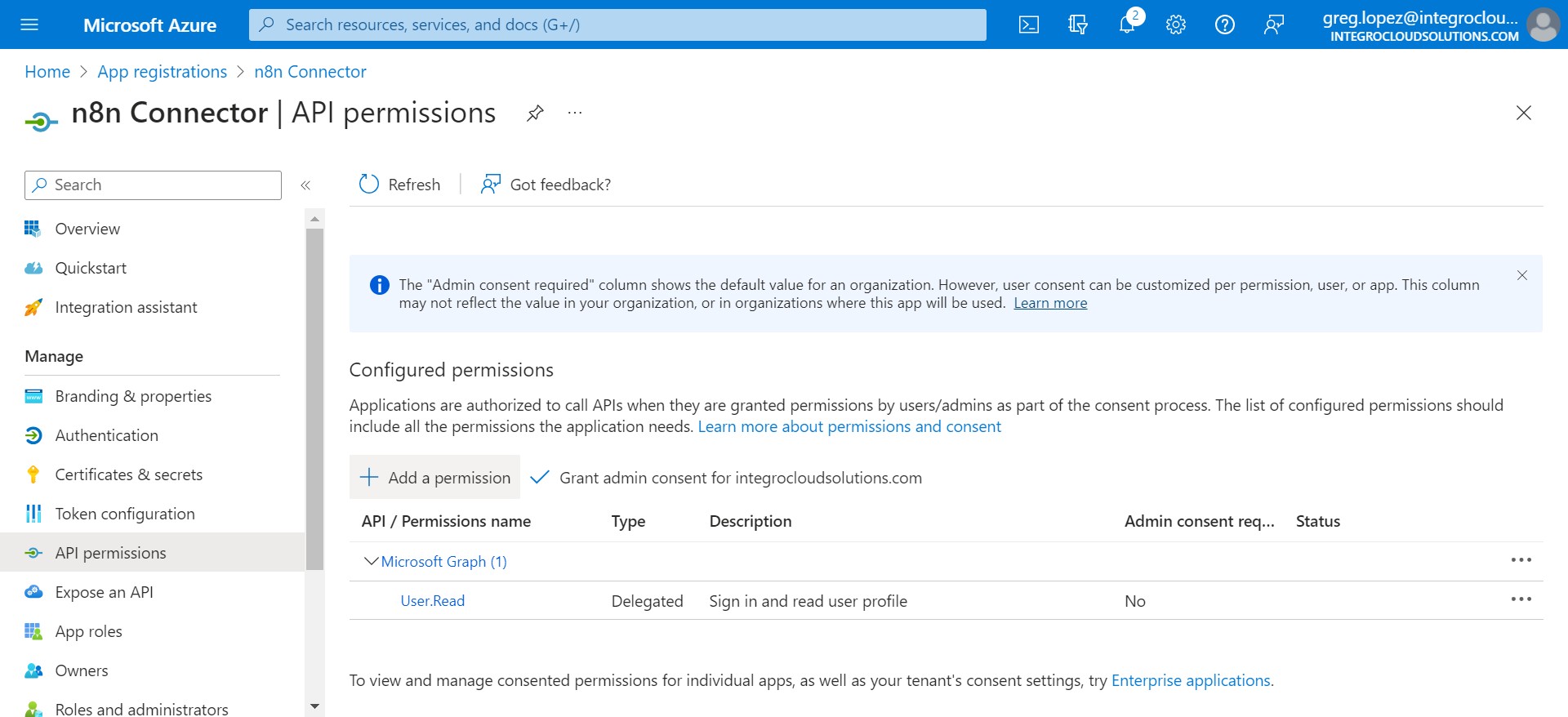
Click on "API permissions"
Click on "Add a permission"
Click on "Dynamics 365 Business Central"
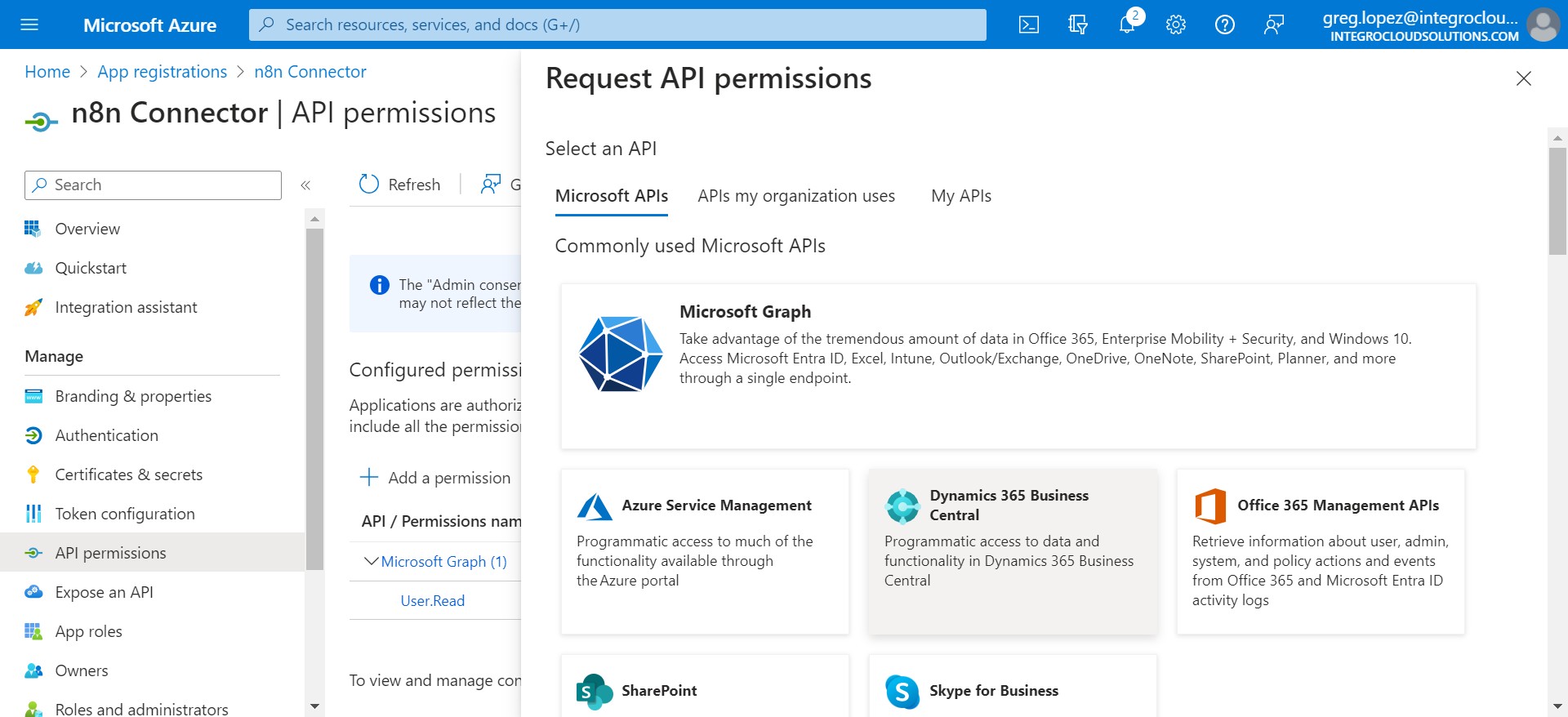
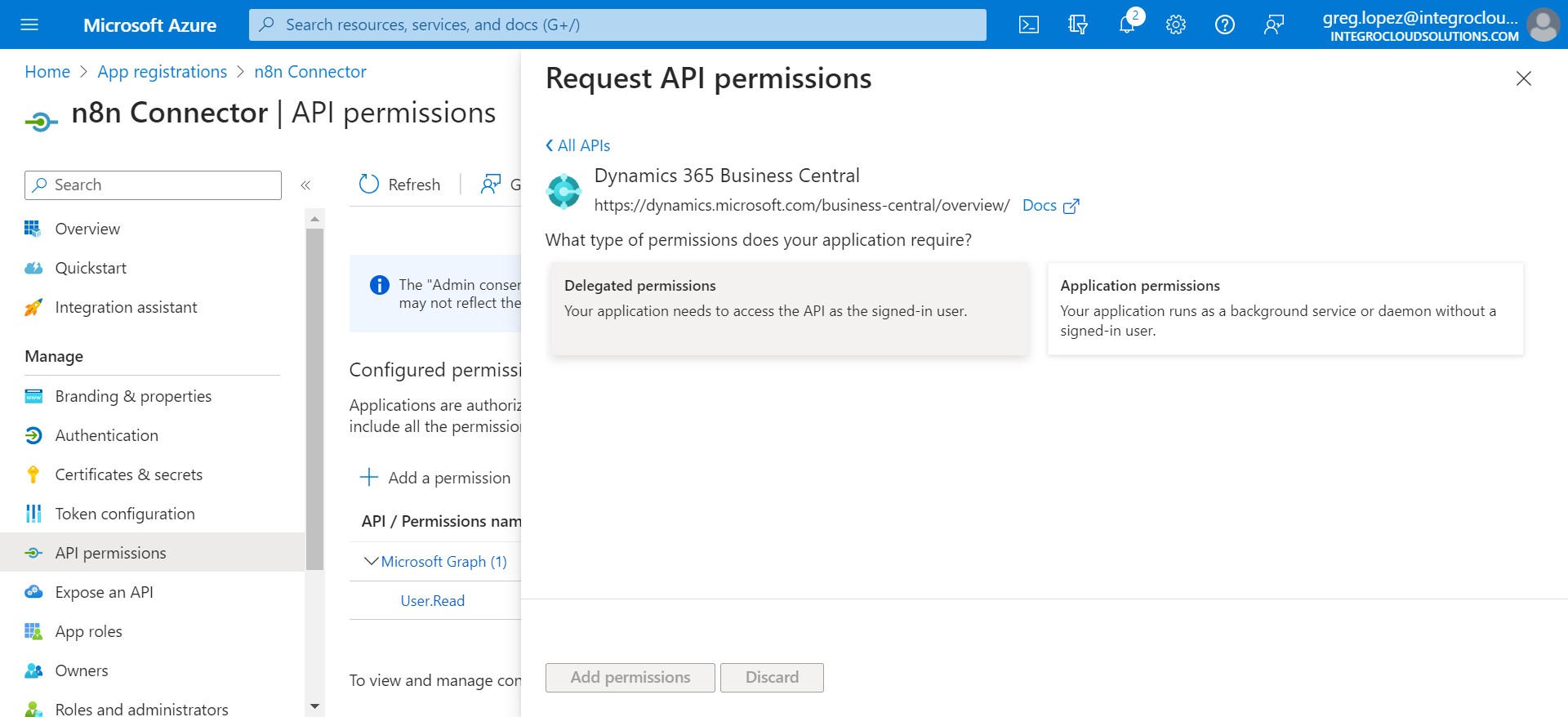
Click on "Delegated permissions"
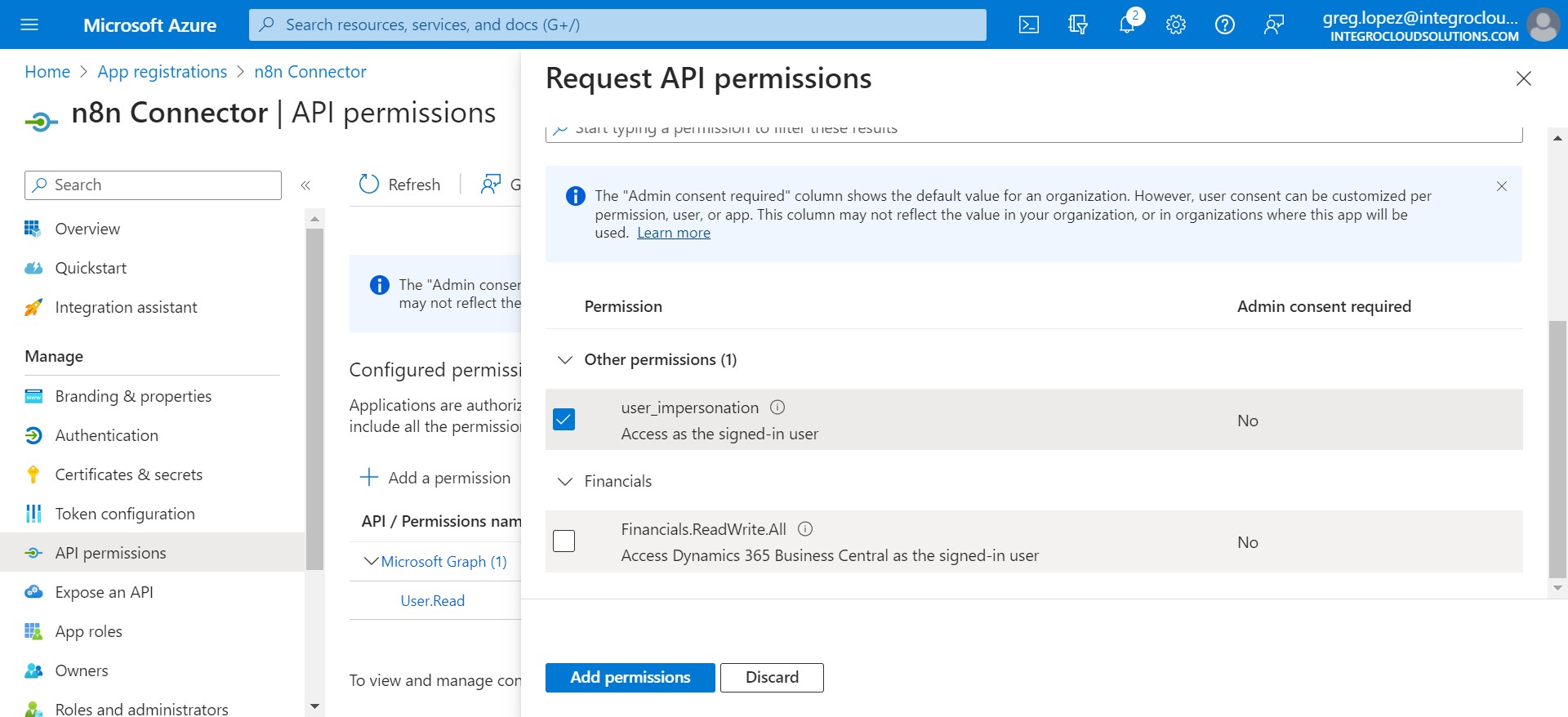
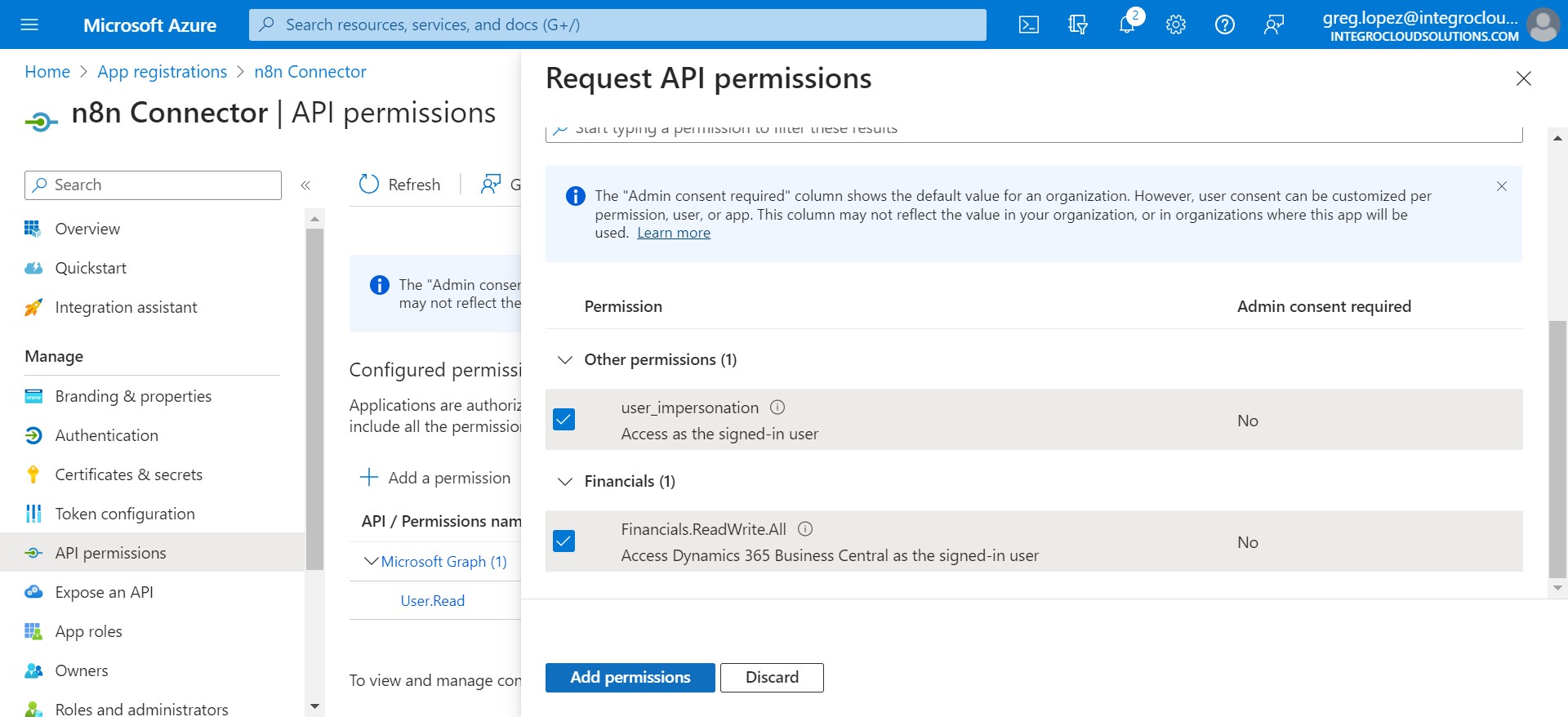
Add the necessary permissions
Add "API.ReadWrite.All" permission
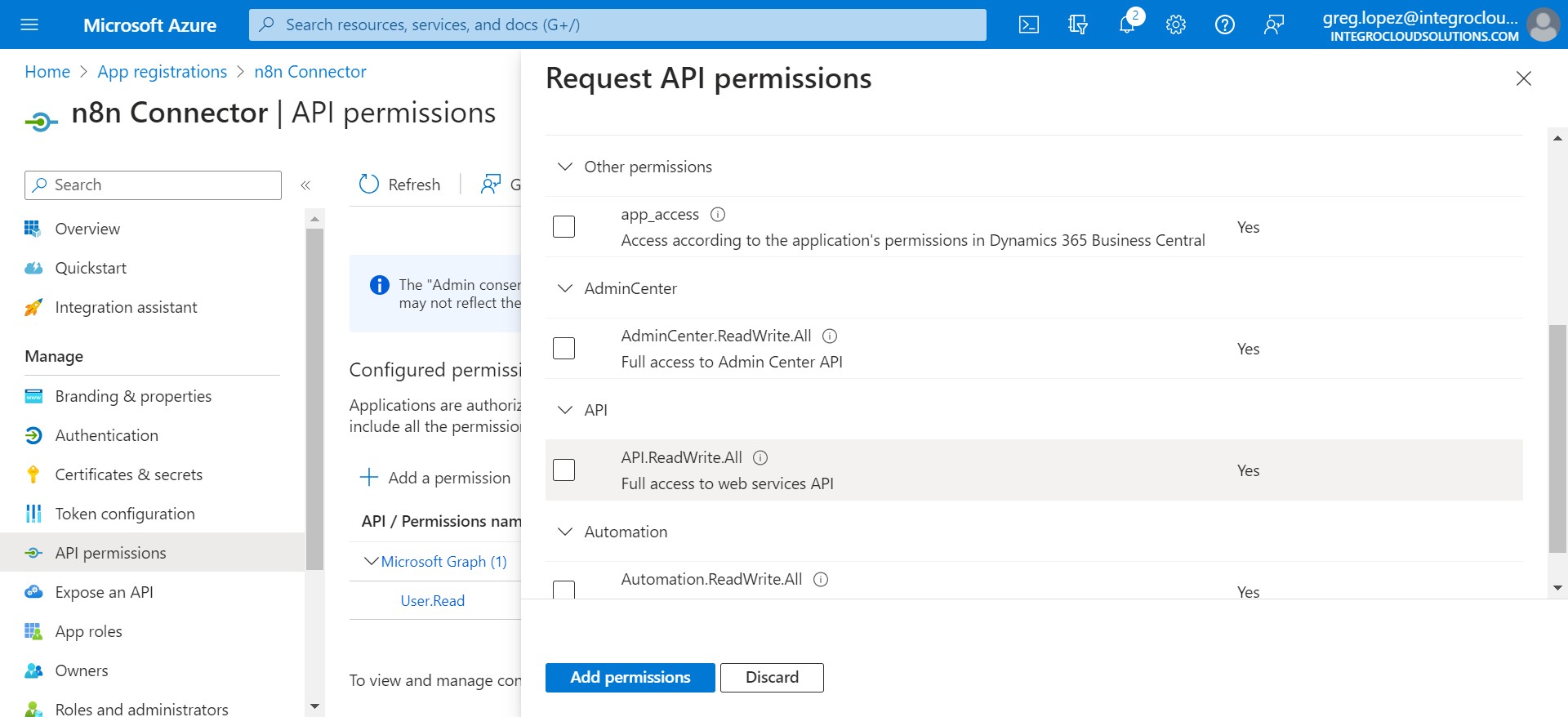
Click on "Add permissions"
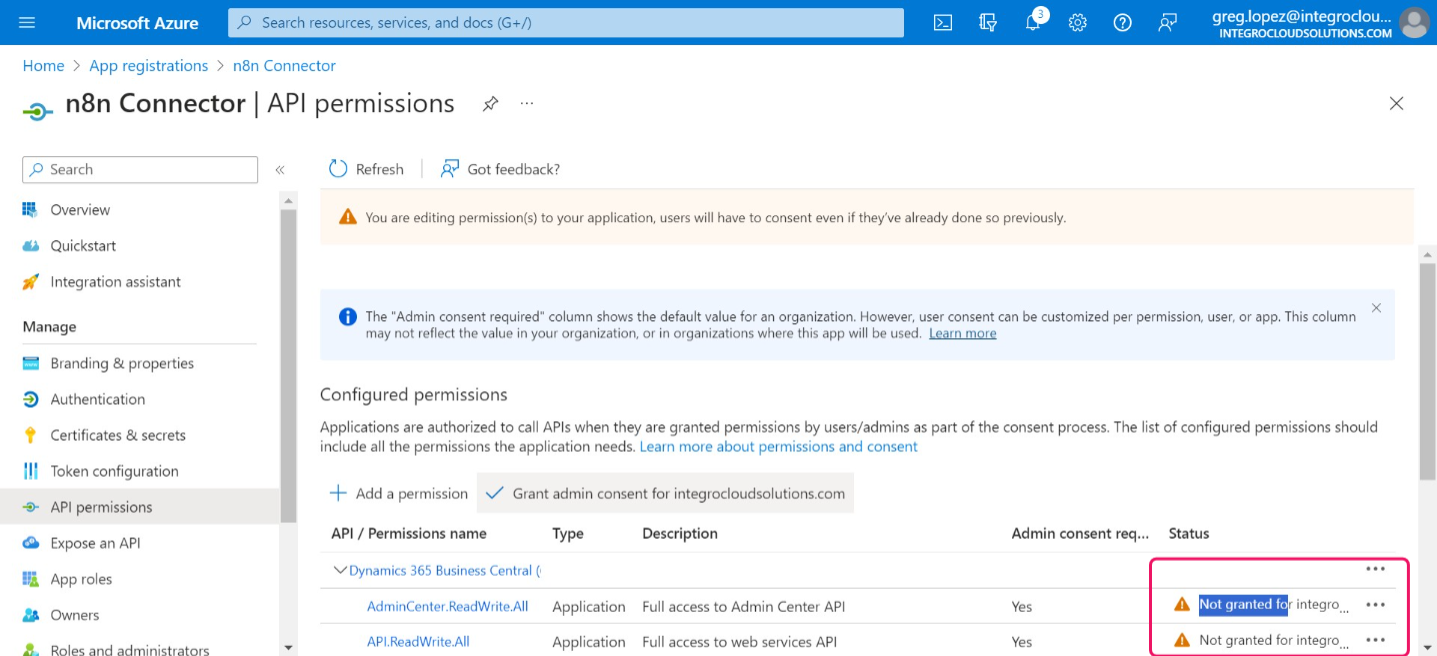
Click on "Grant admin consent for integrocloudsolutions.com"
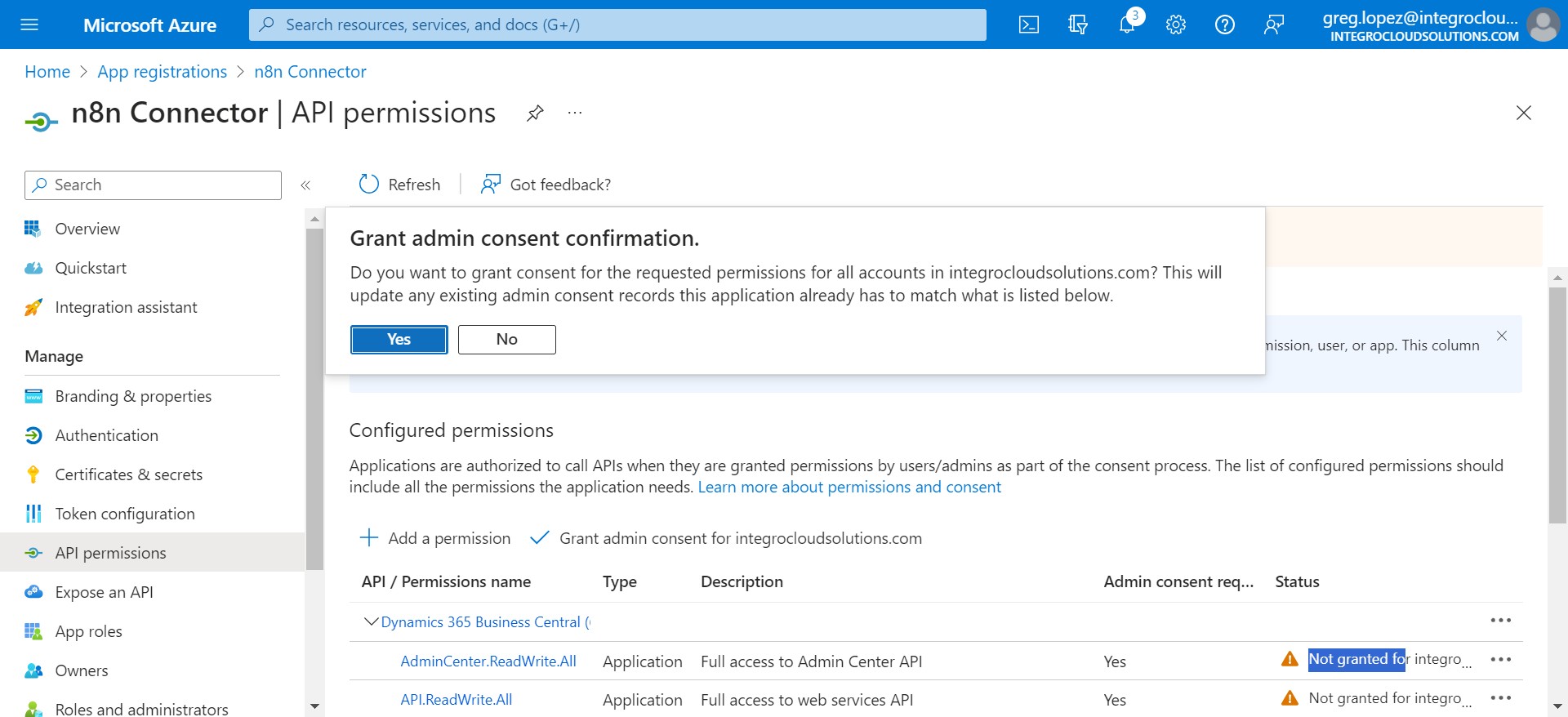
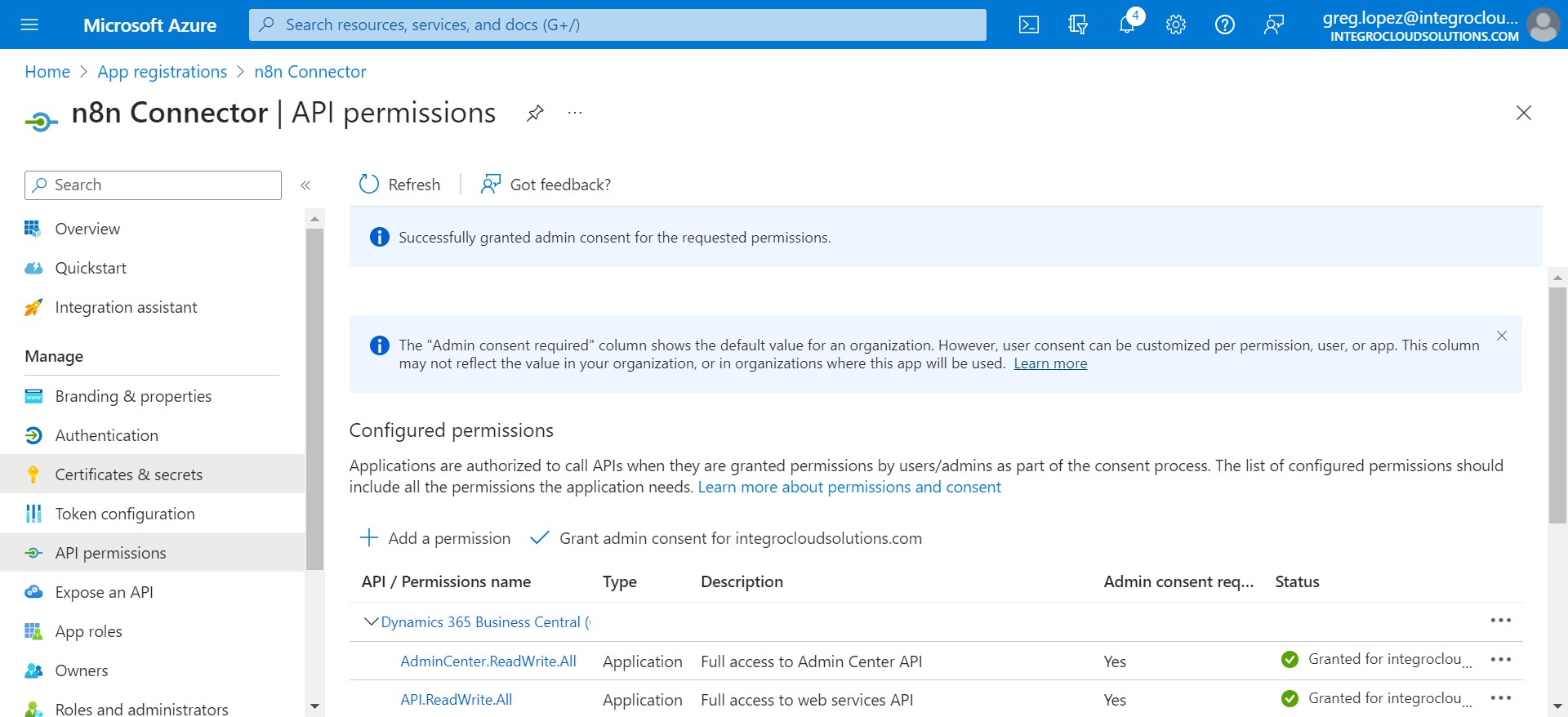
Click on "Yes"
Click on "Certificates & secrets"
Click on "New client secret"
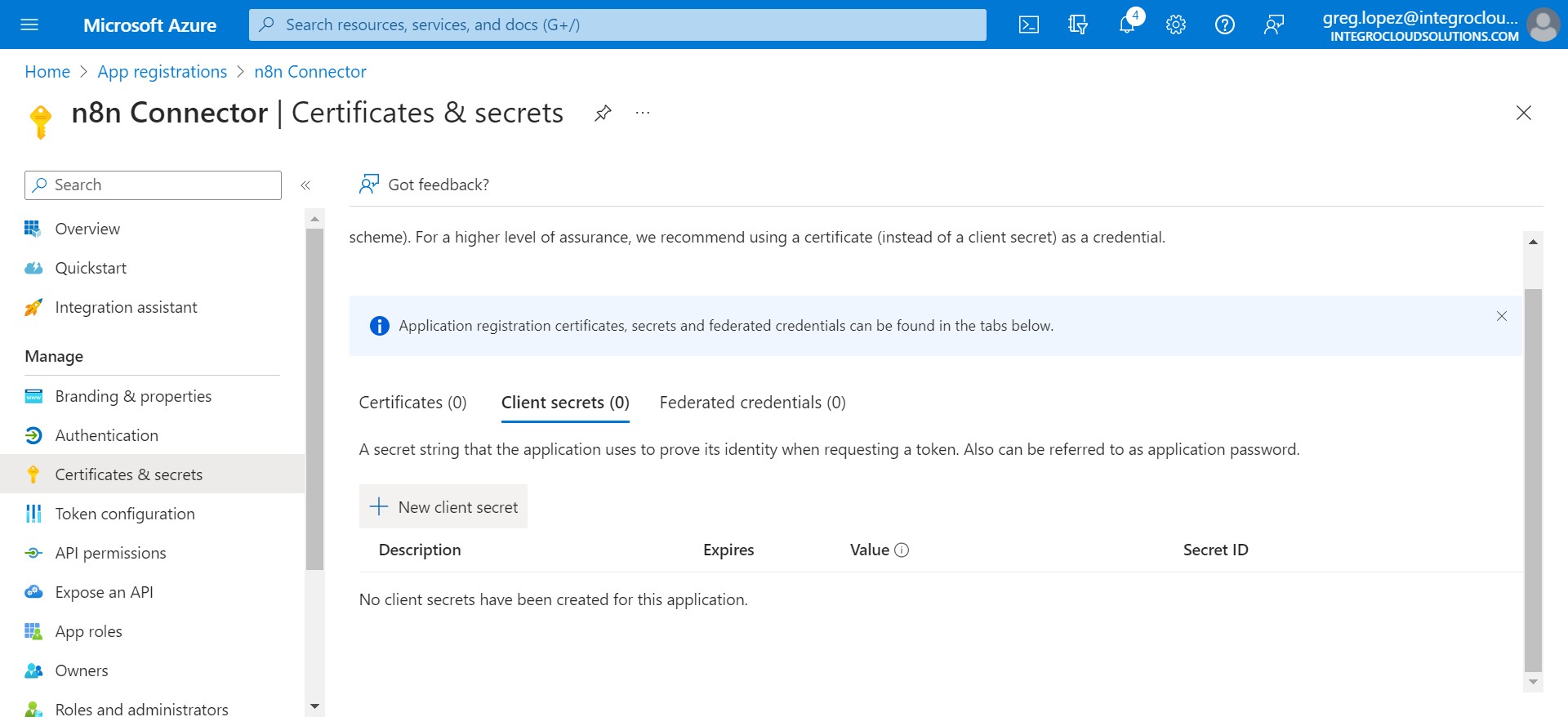
Click on "Add"
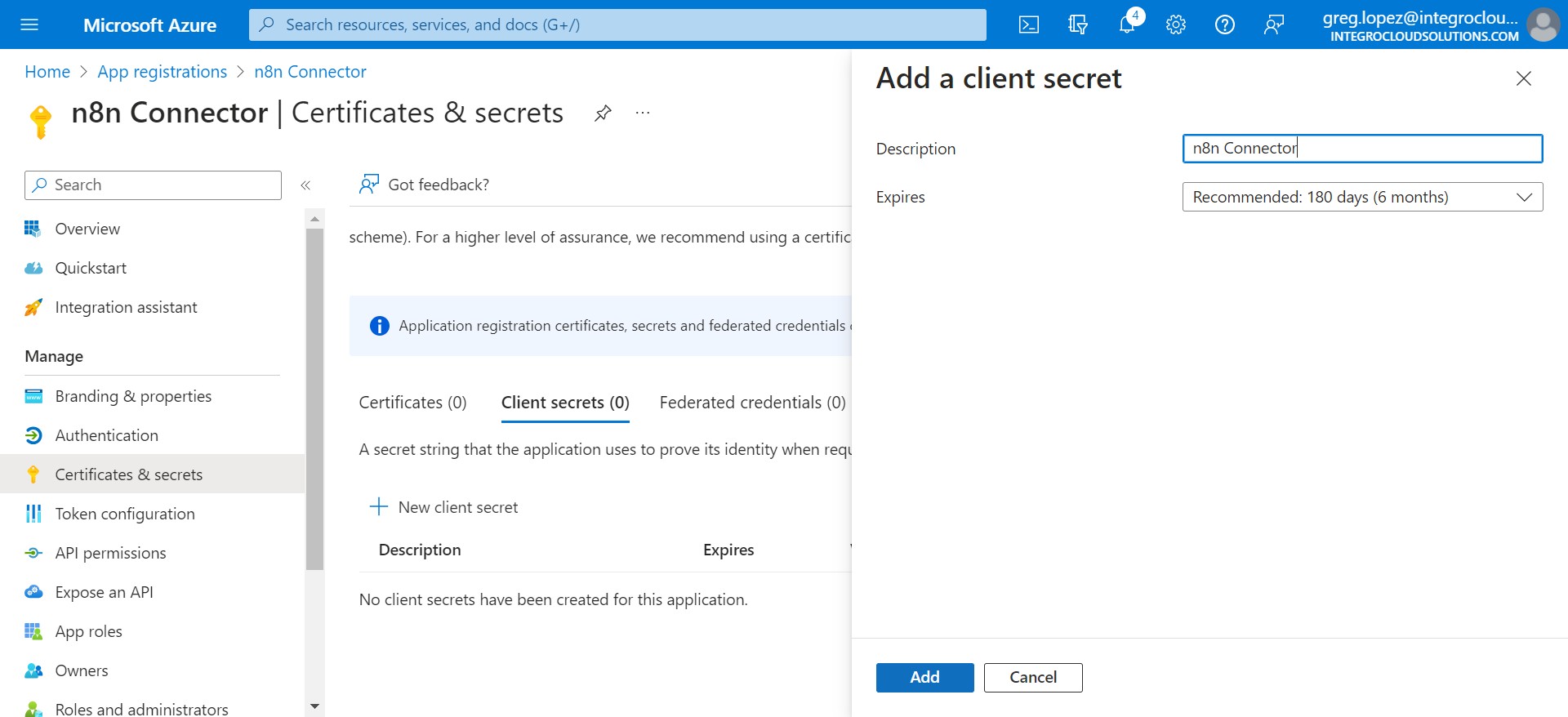
Copy Secret Value & Secret ID
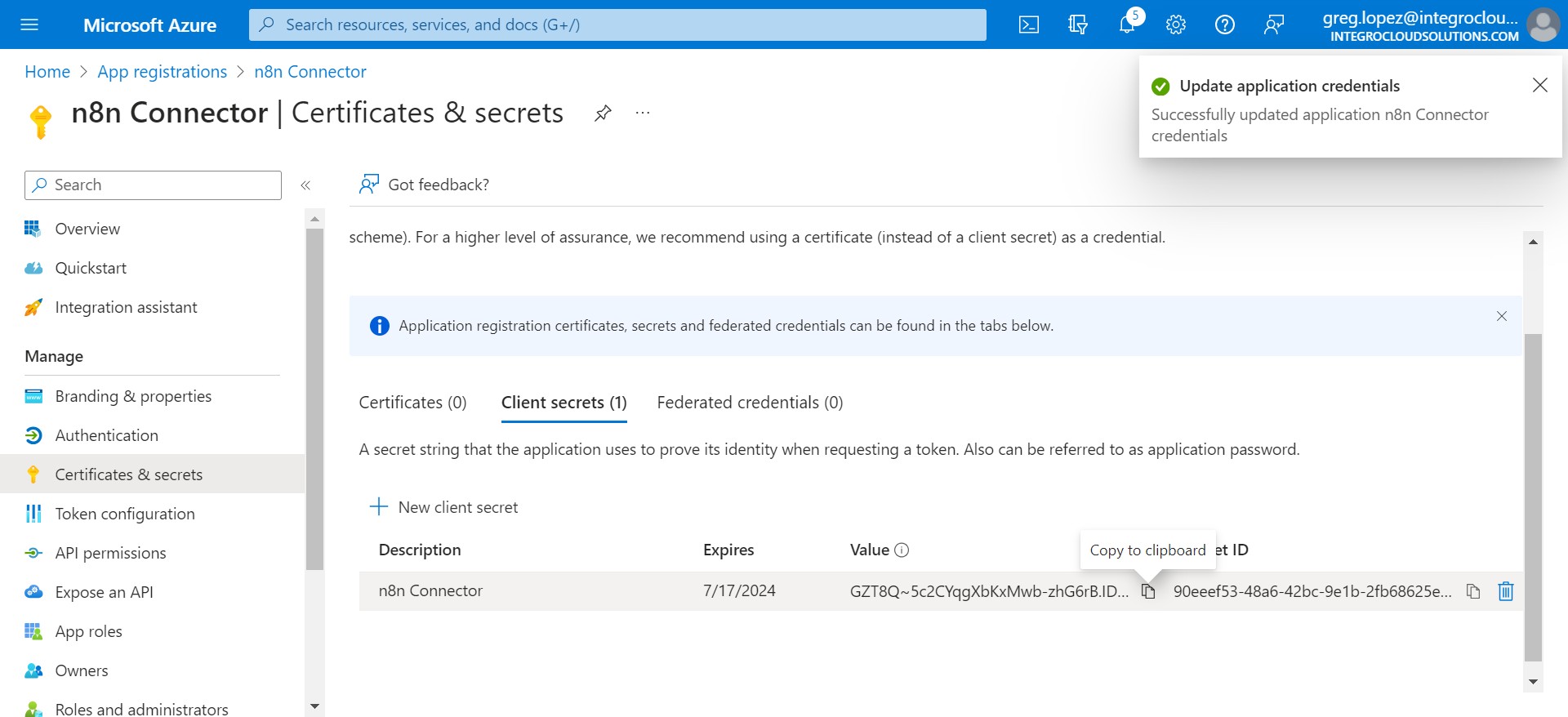
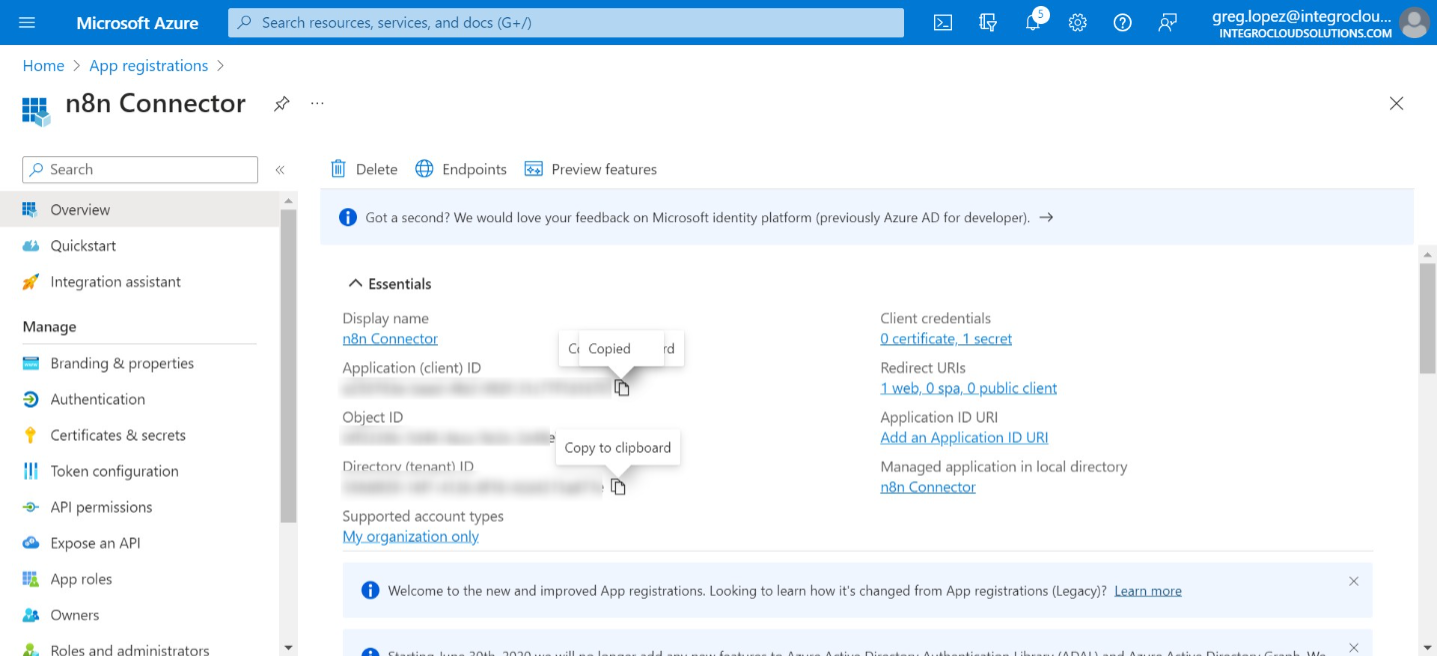
Copy "Client ID"
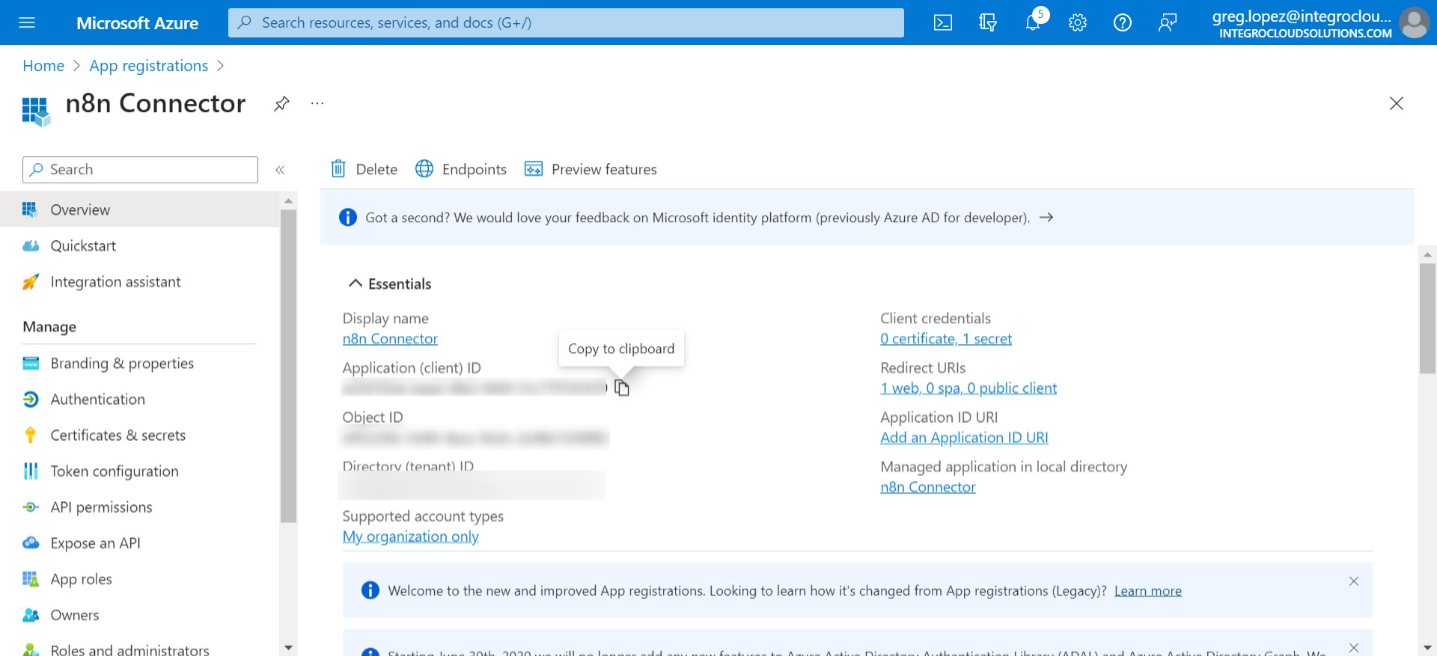
Copy Tenant ID
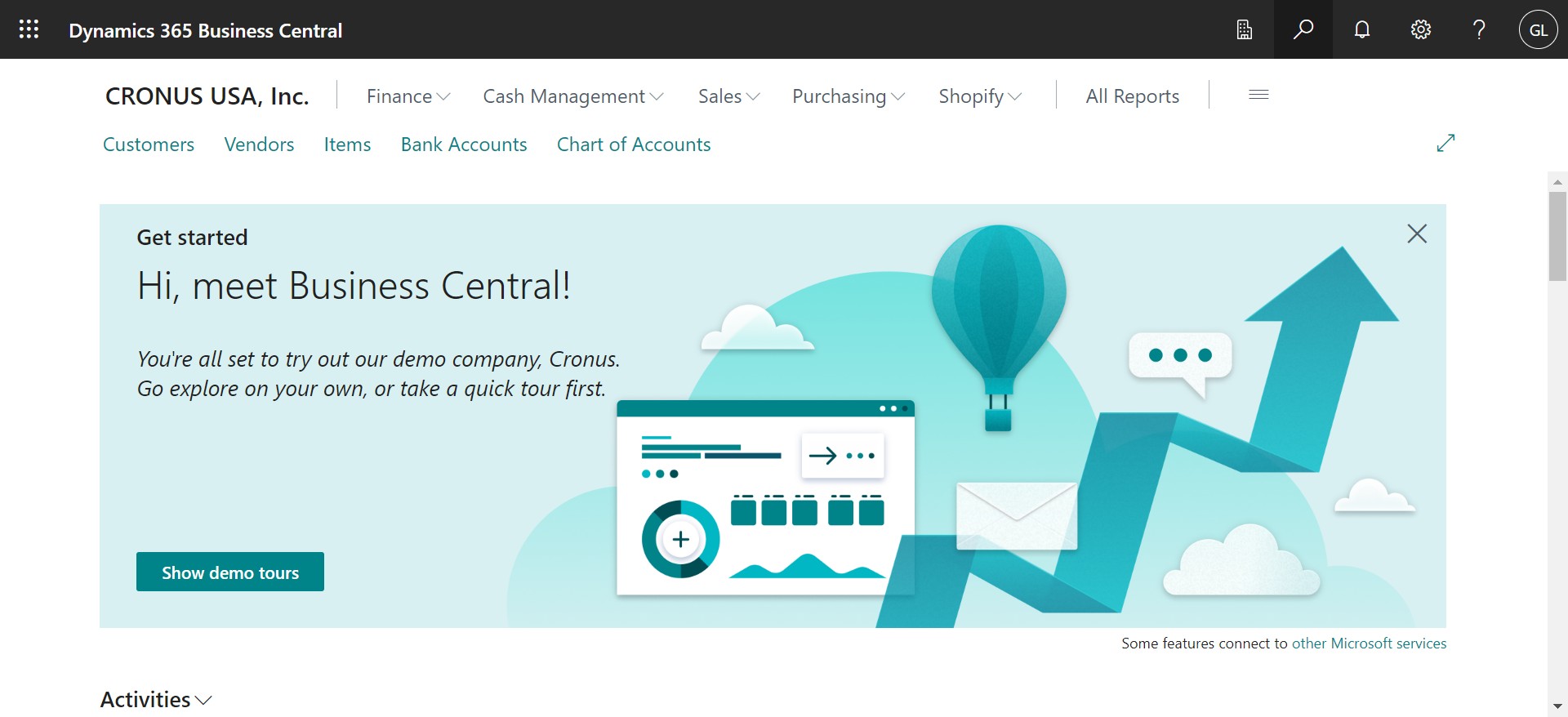
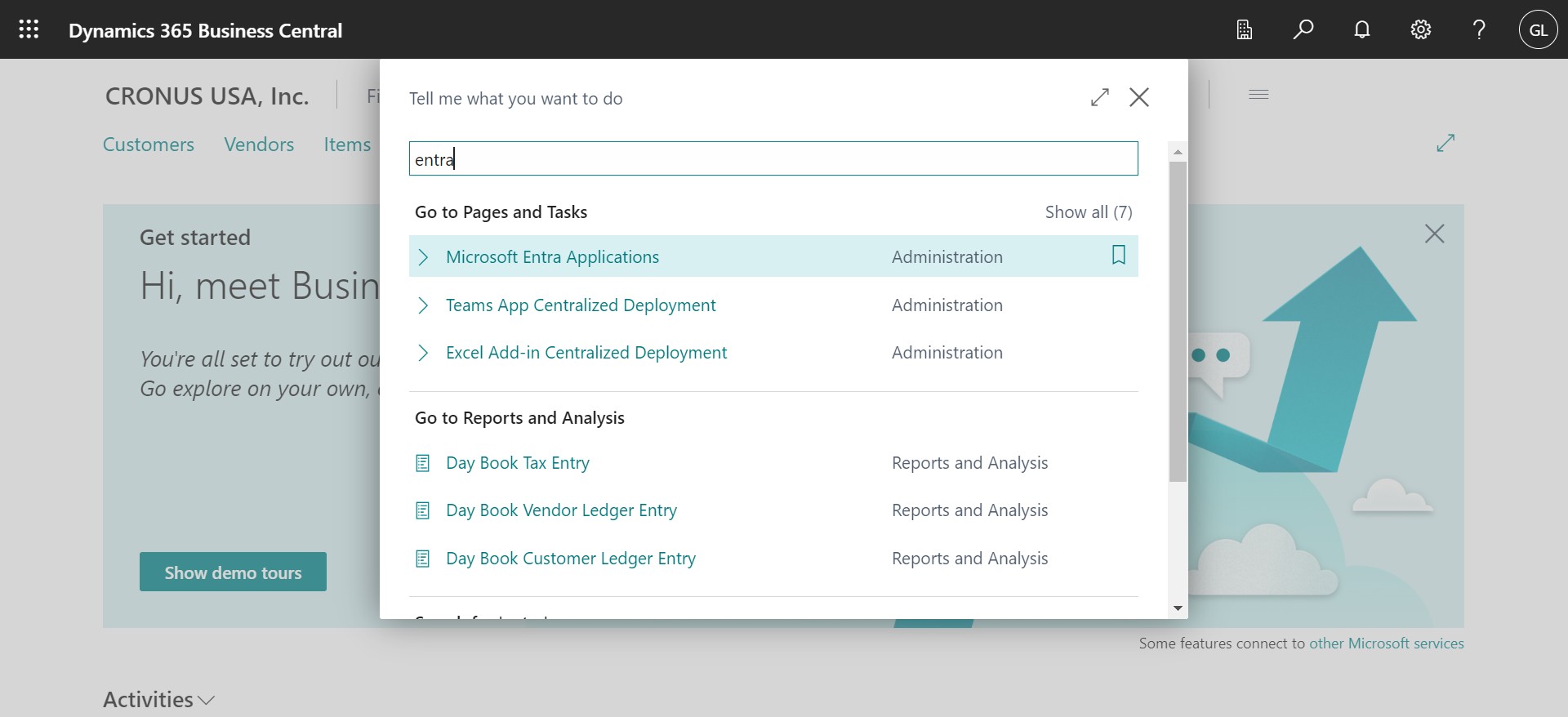
Login into Dynamics 365 Business Central and search for "Entra"
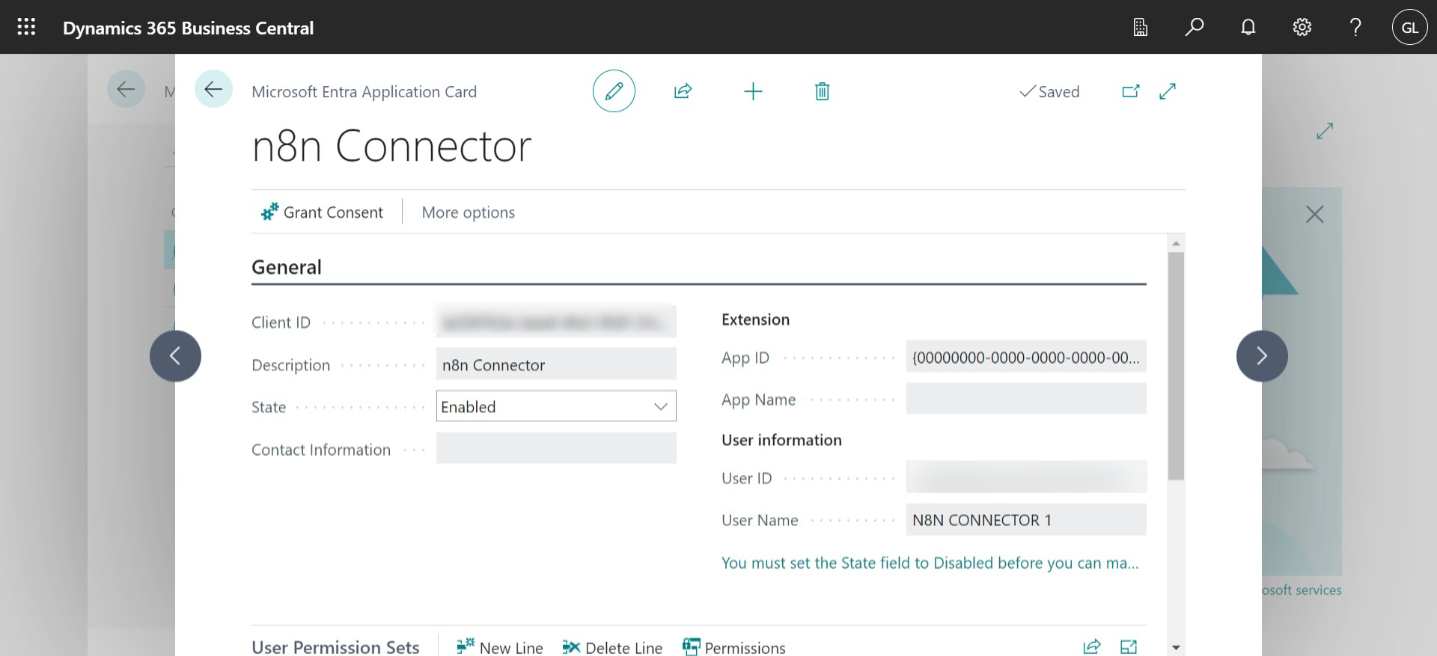
Click on "Microsoft Entra Applications"
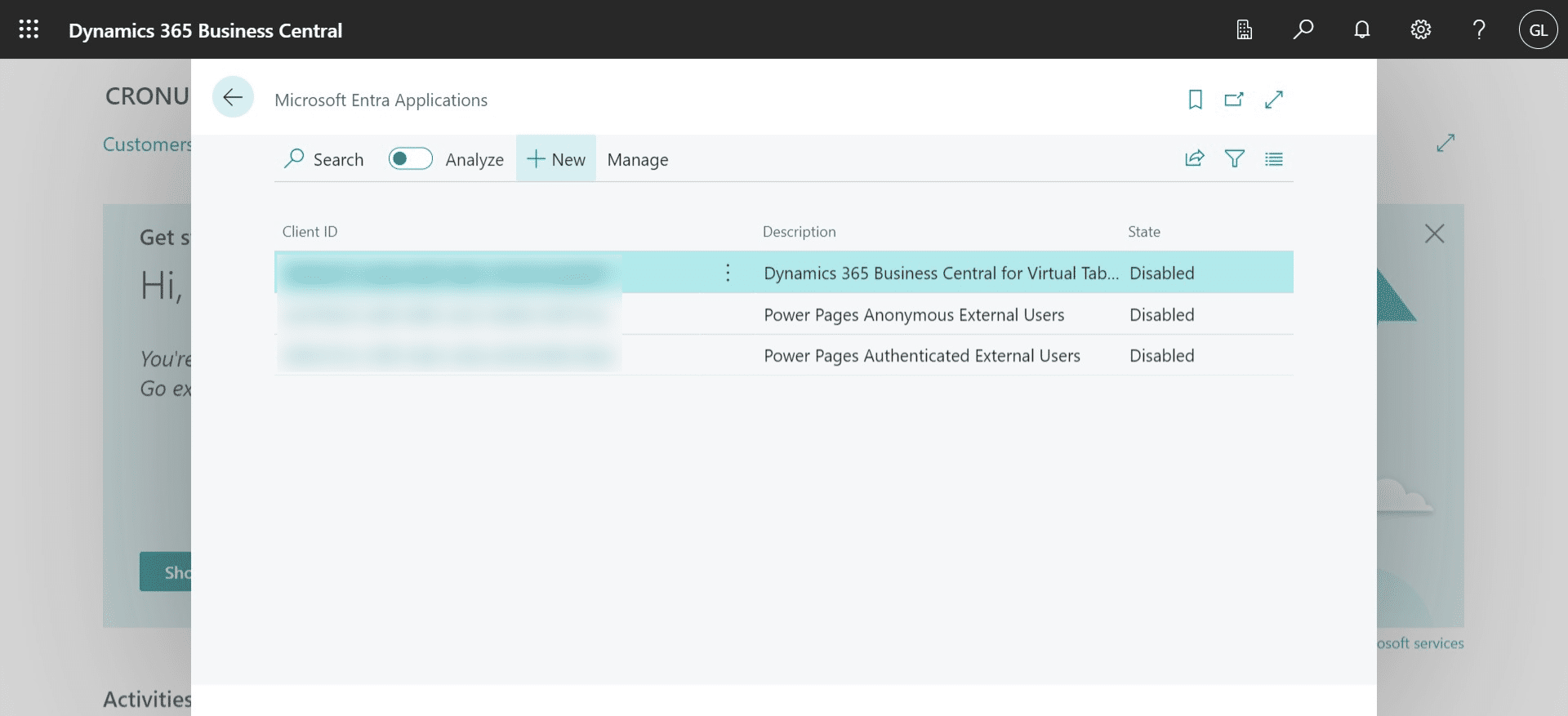
Click on "New"
On Client ID enter your "n8n Connector" Client ID from previous steps
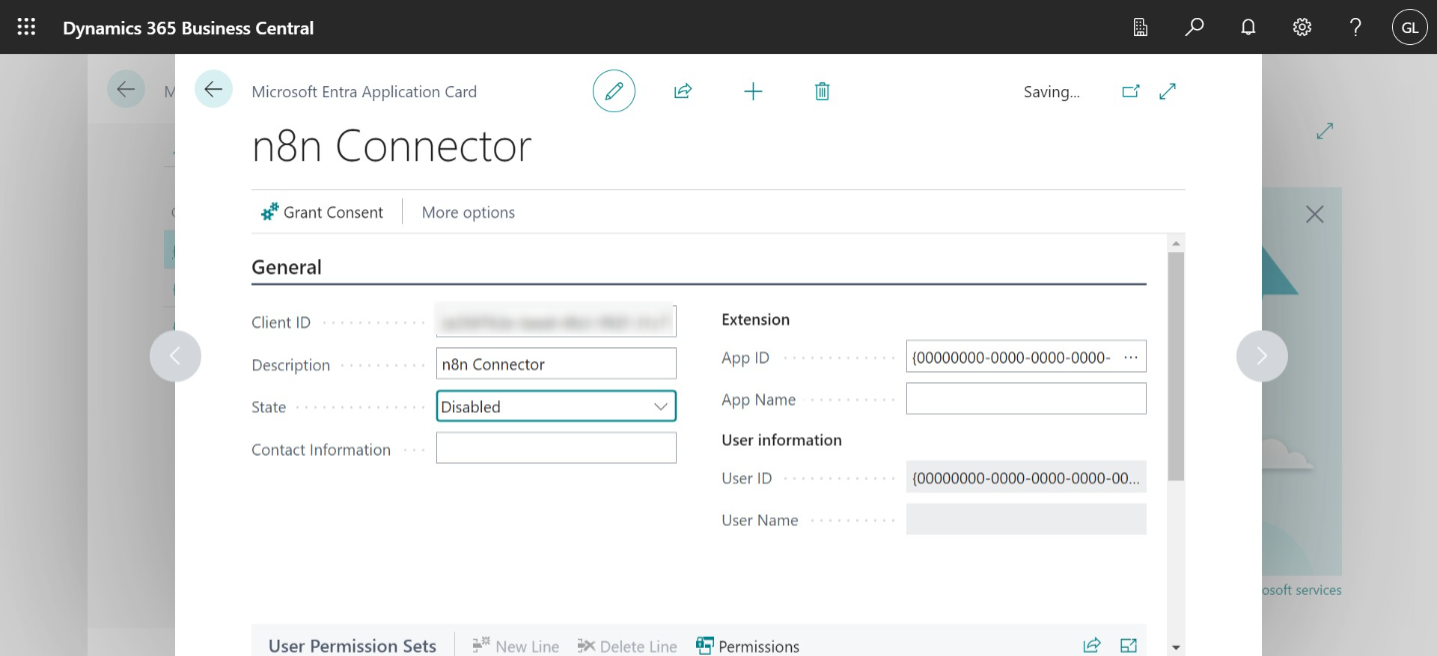
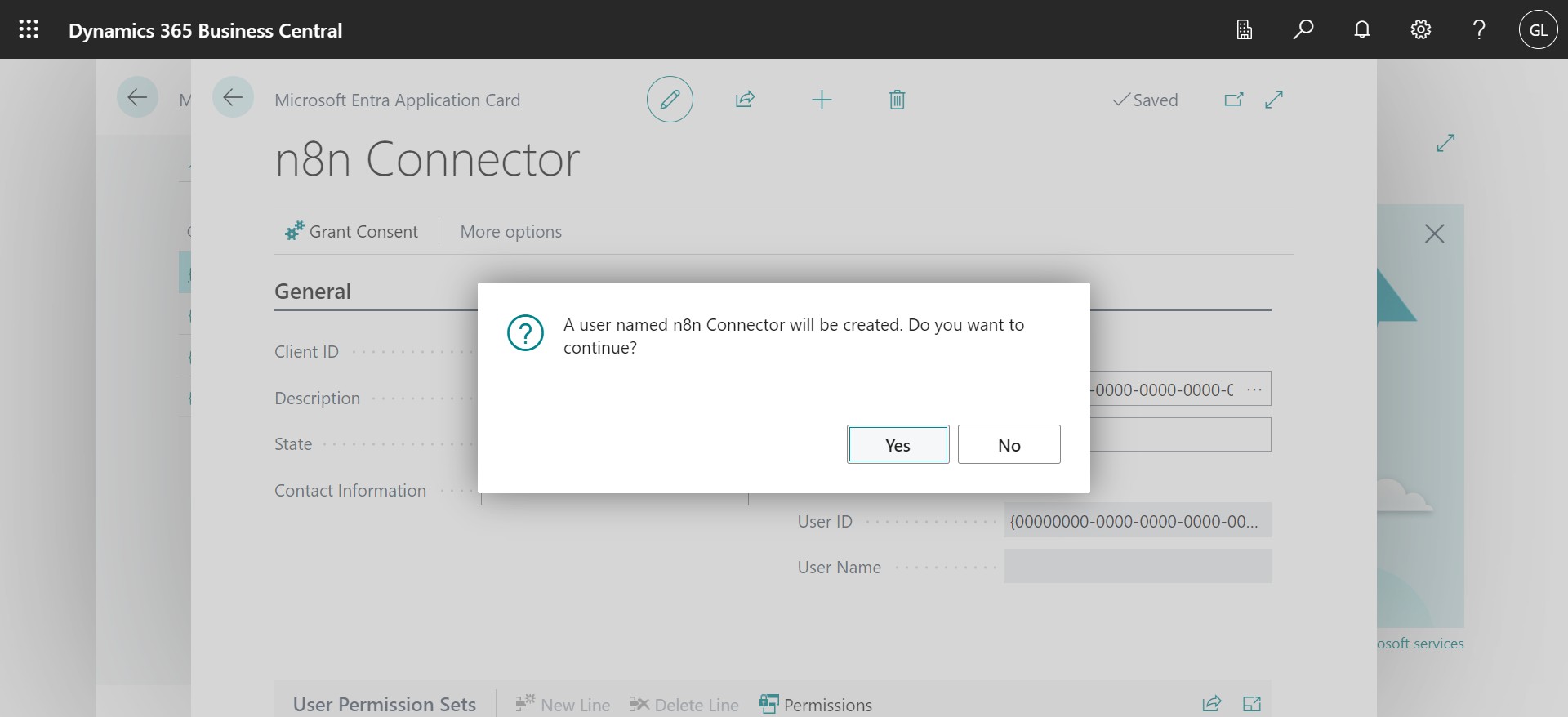
Click on "Yes"
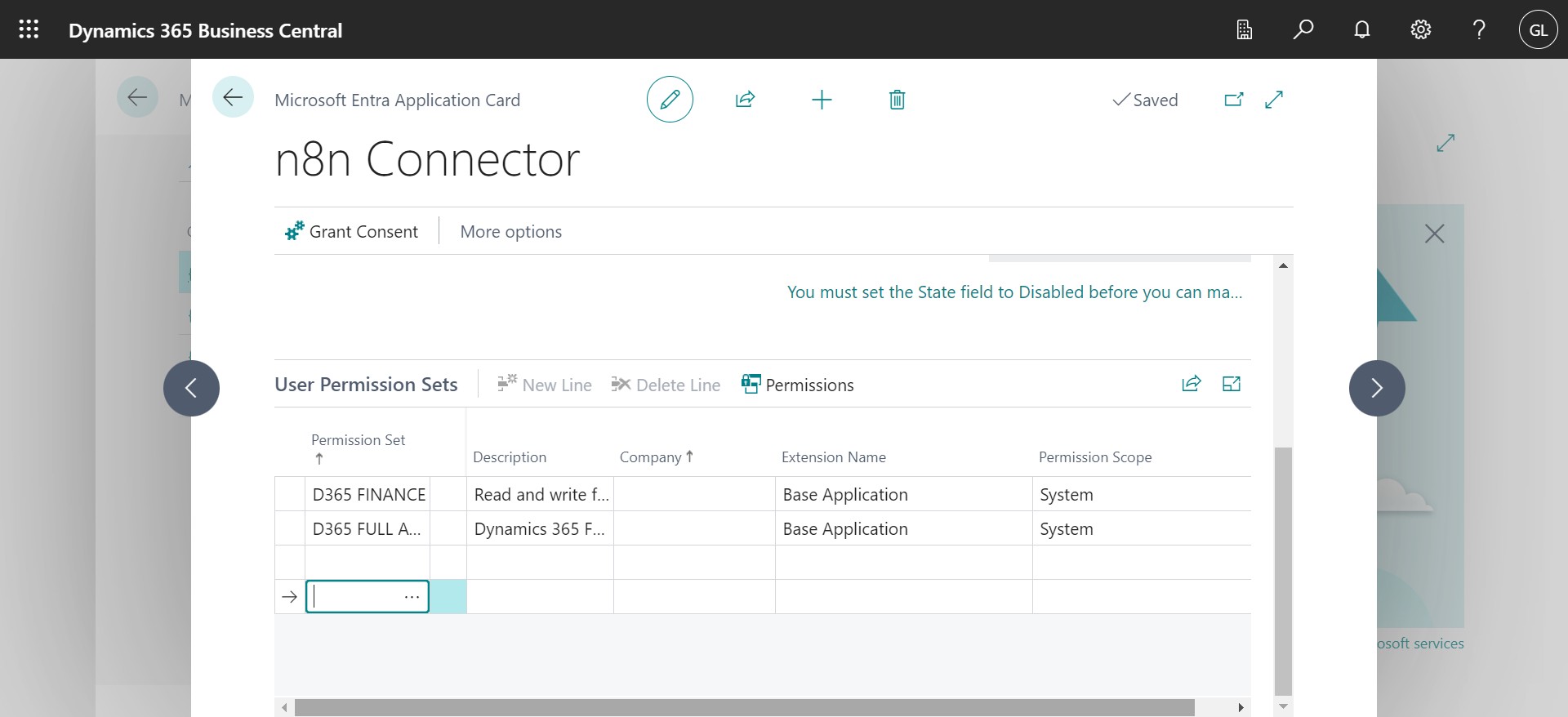
Add the necessary permission sets for you app
Click on "Grant Consent"
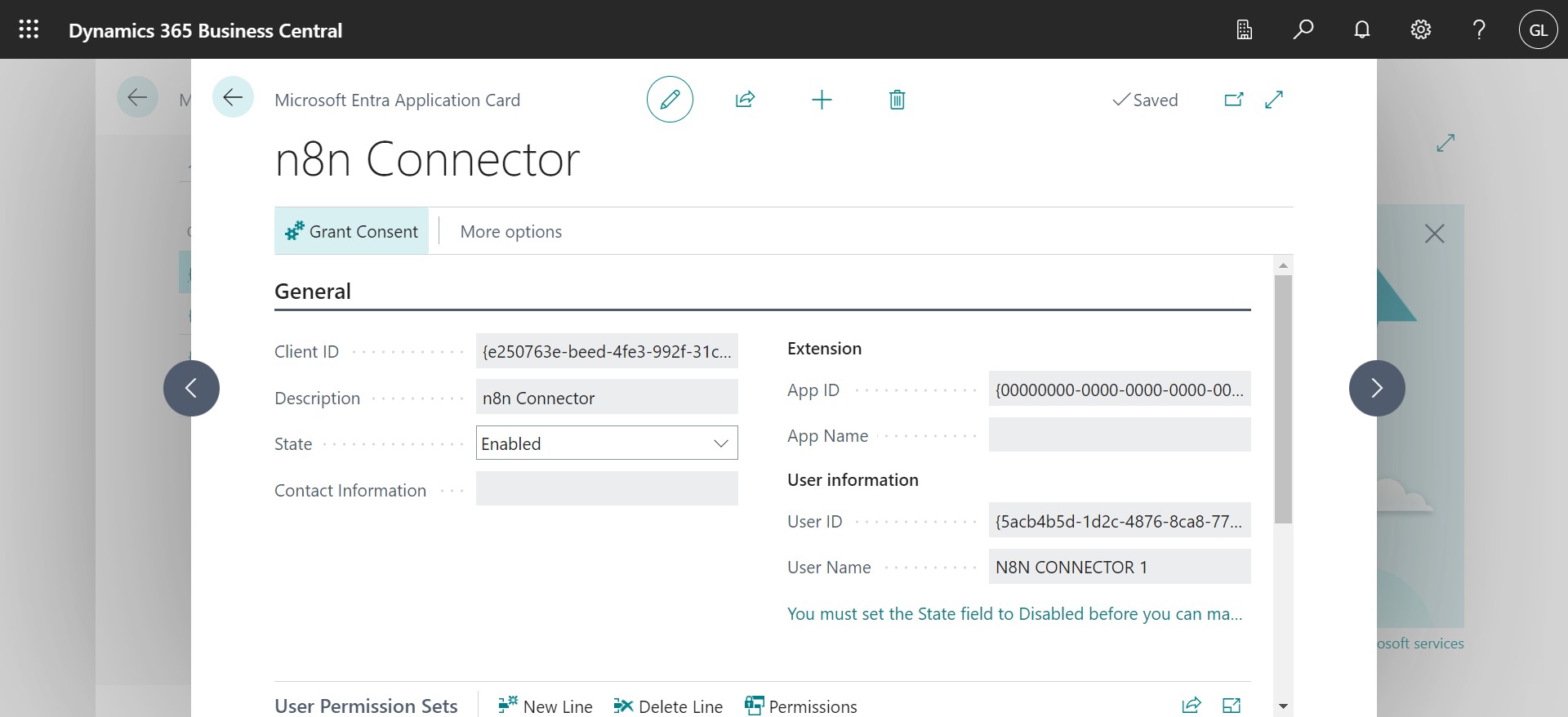
Select the User Account to grant consent
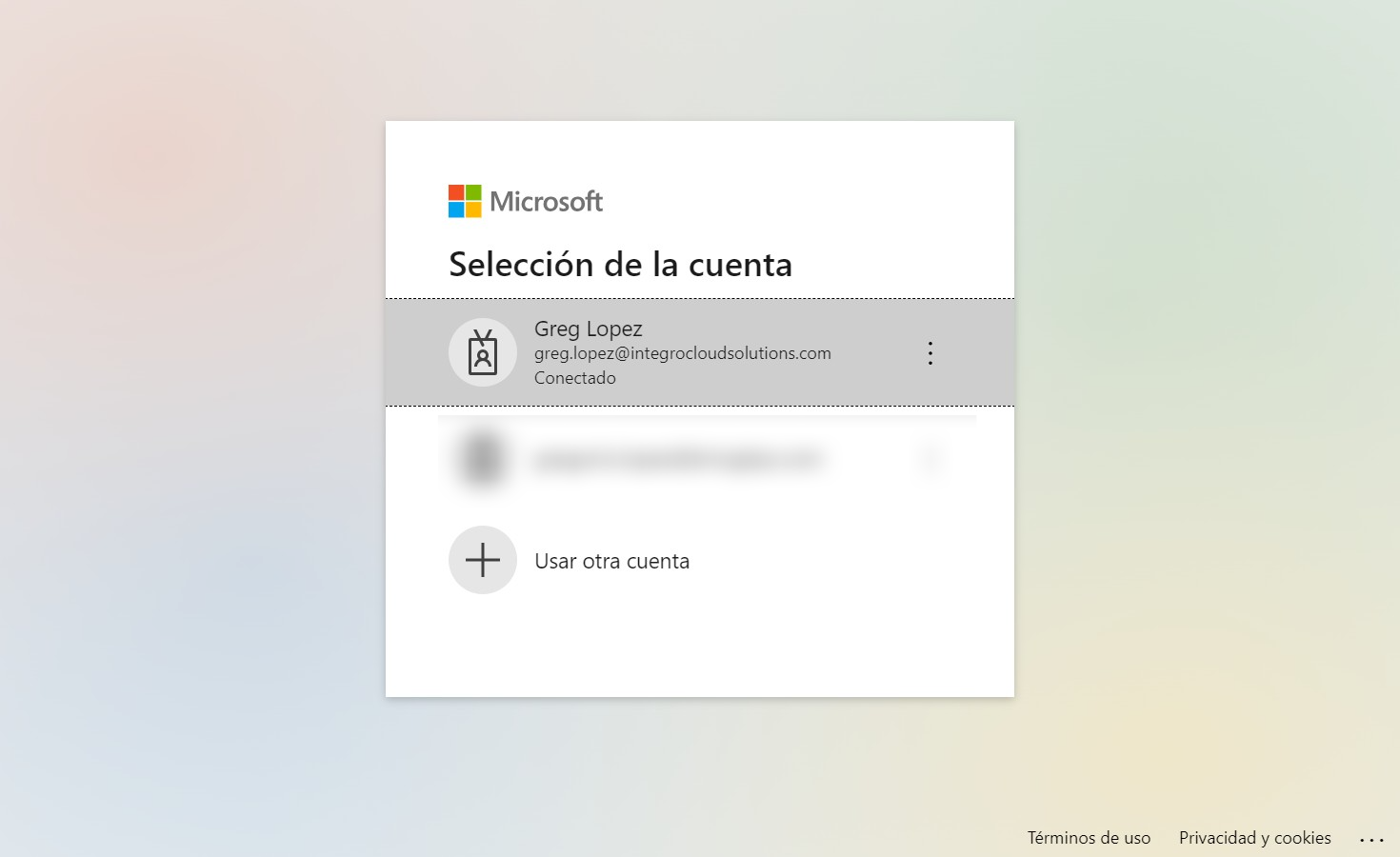
Click on "OK"

Done 🚀
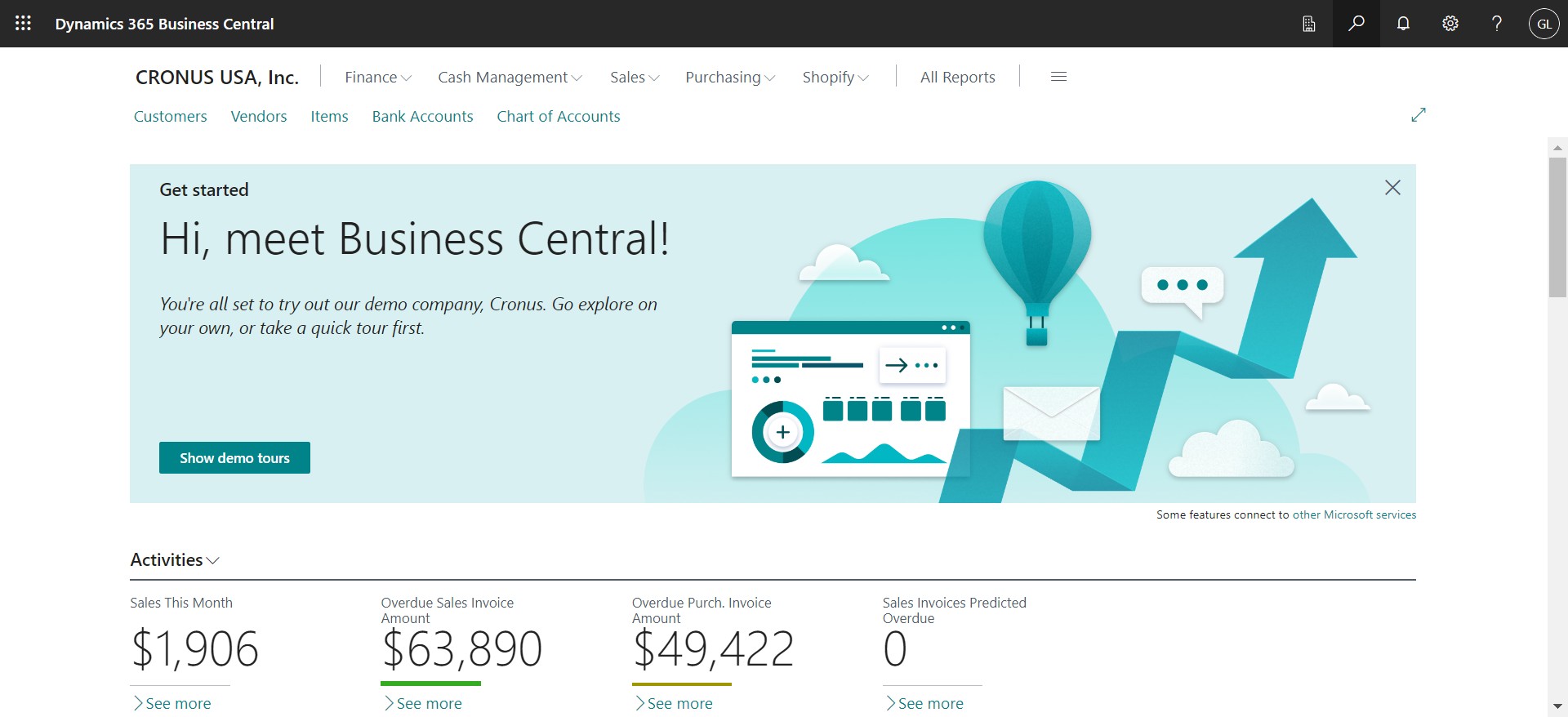
Business Central Company ID
Click on the search icon
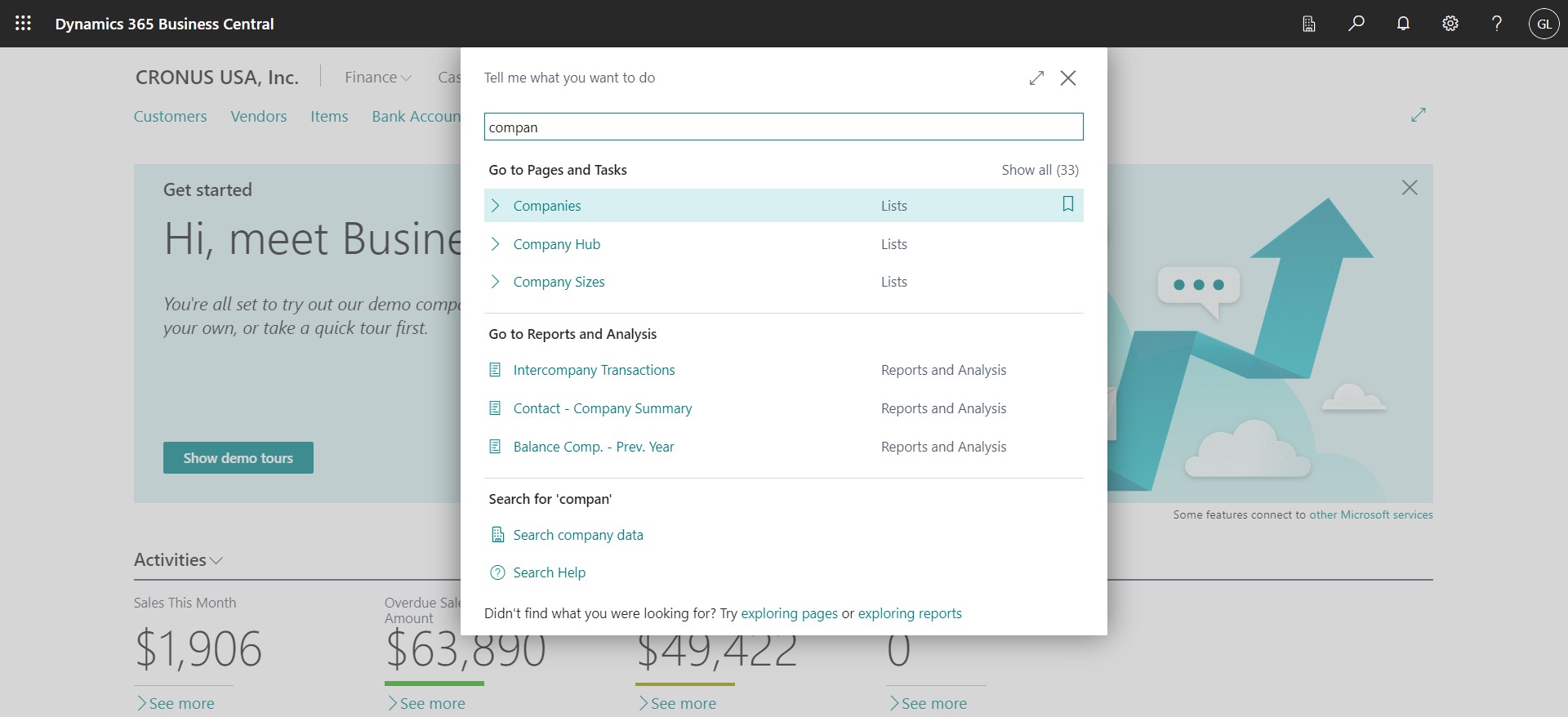
Search & click on "Companies"
Select the company to get the ID from
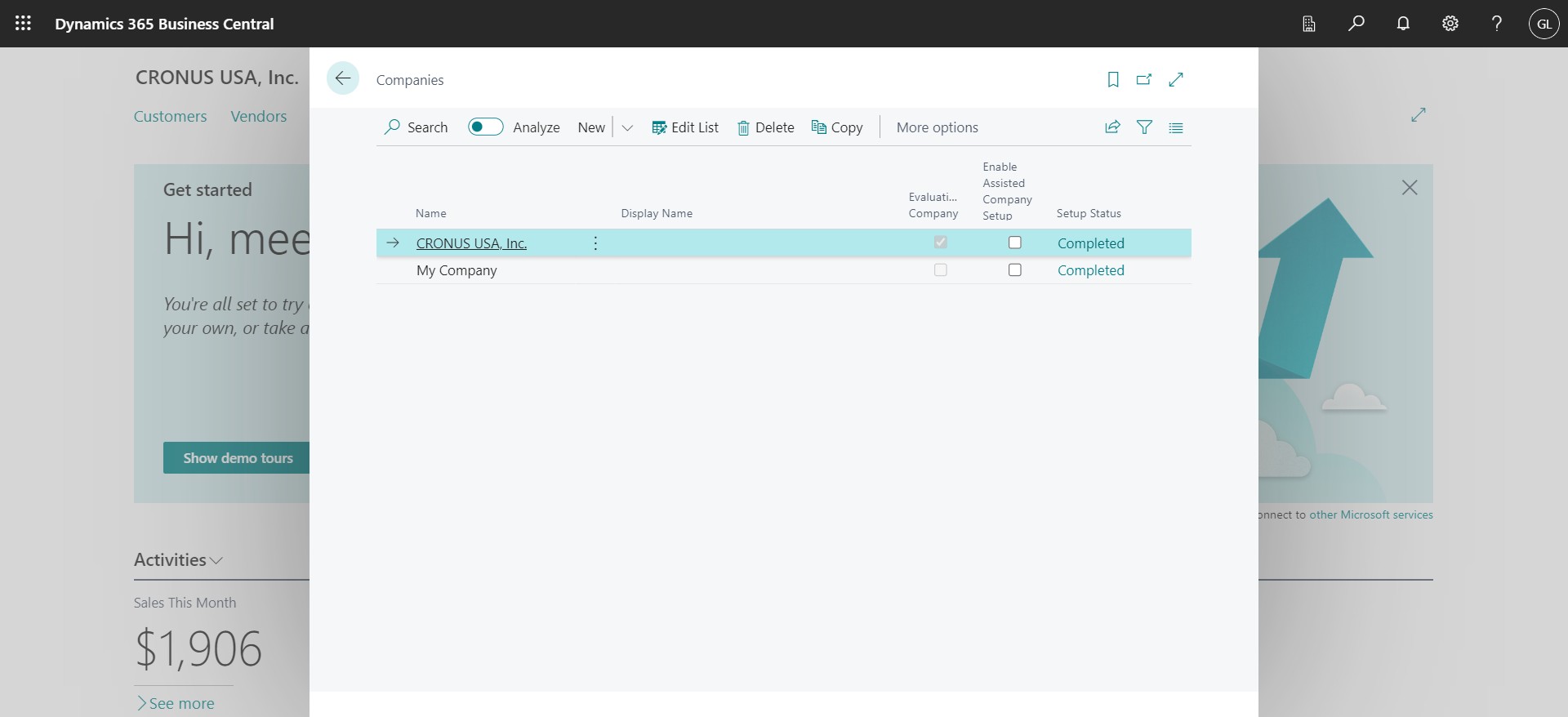
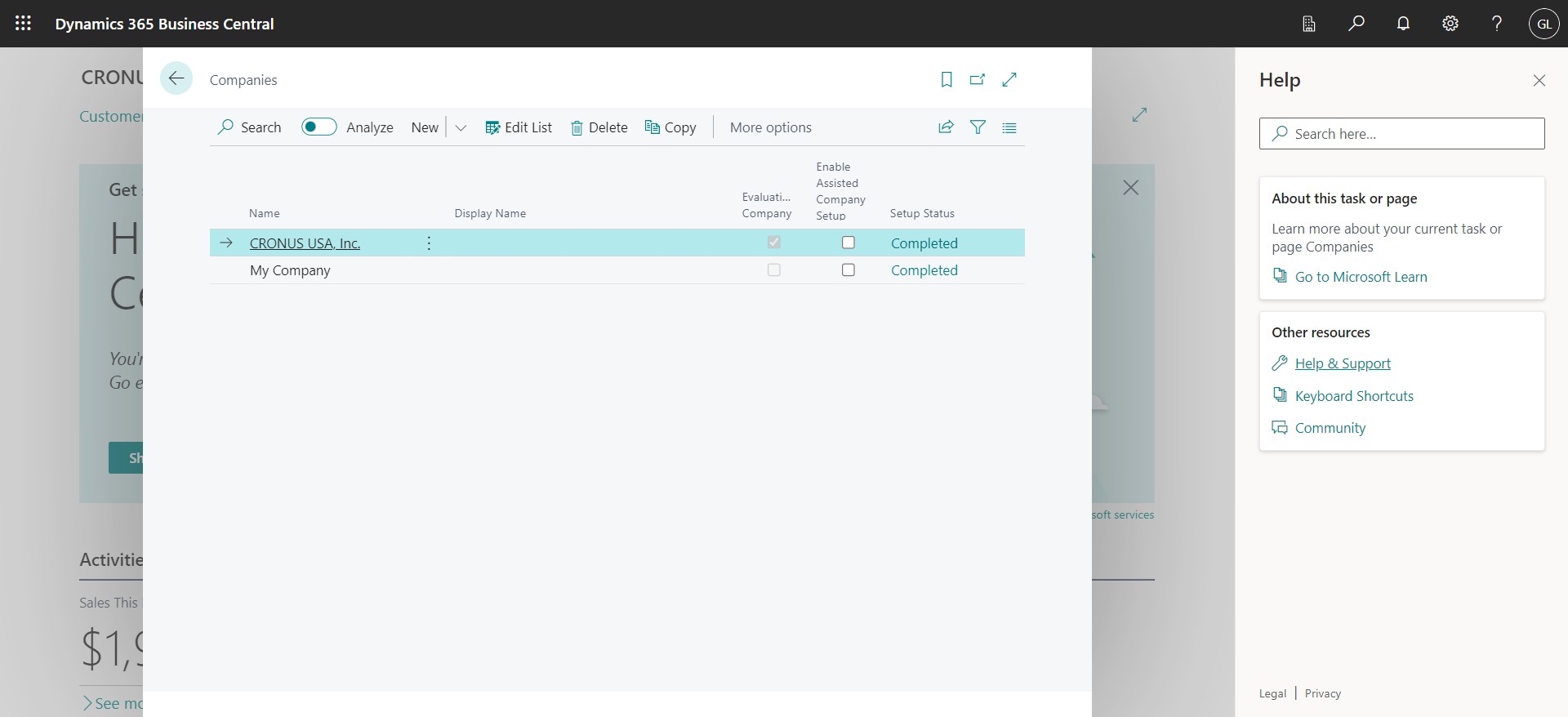
Click on "Help & Support"
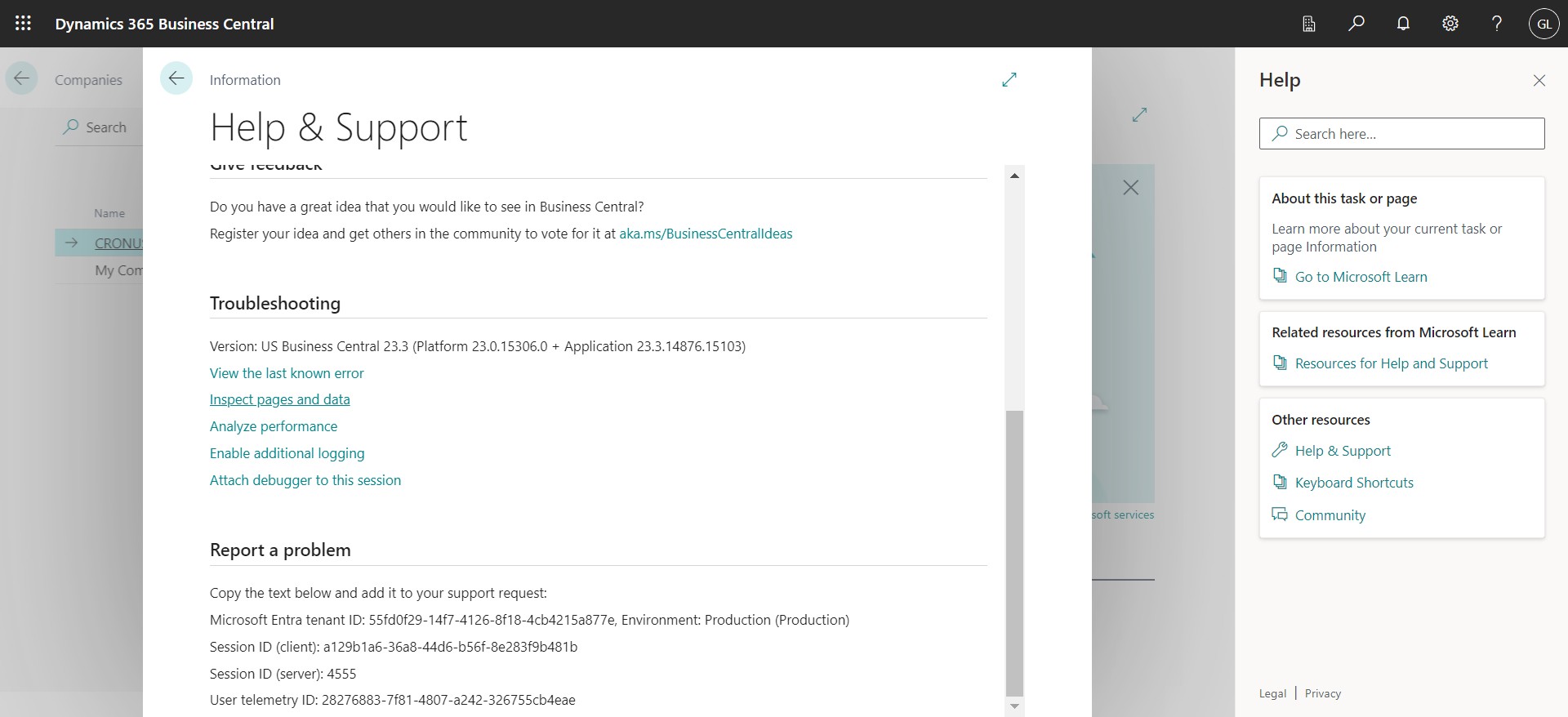
Click on "Inspect pages and data"
Validate the Name field contain the company name you are looking for
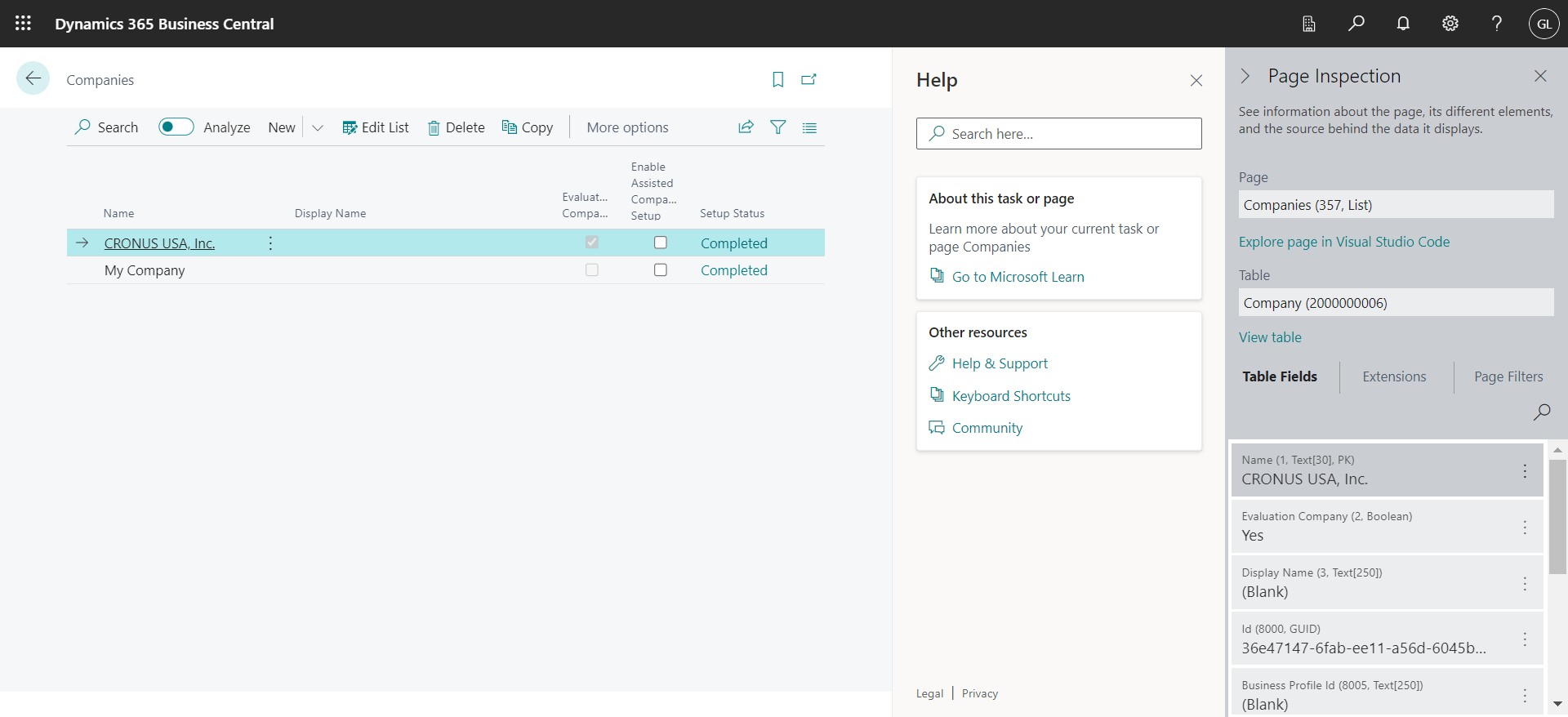
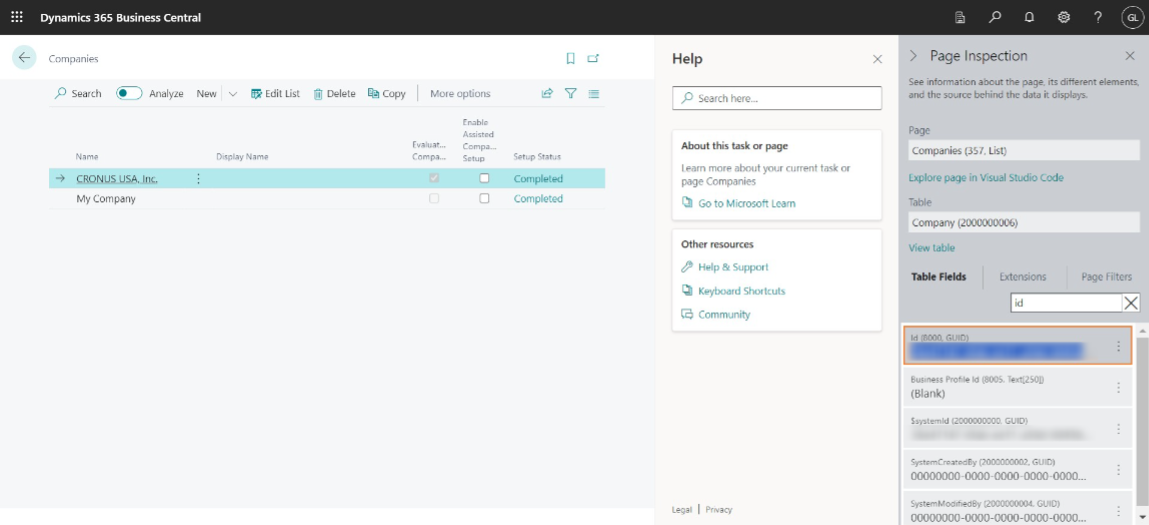
Click on the search icon and type "Id"
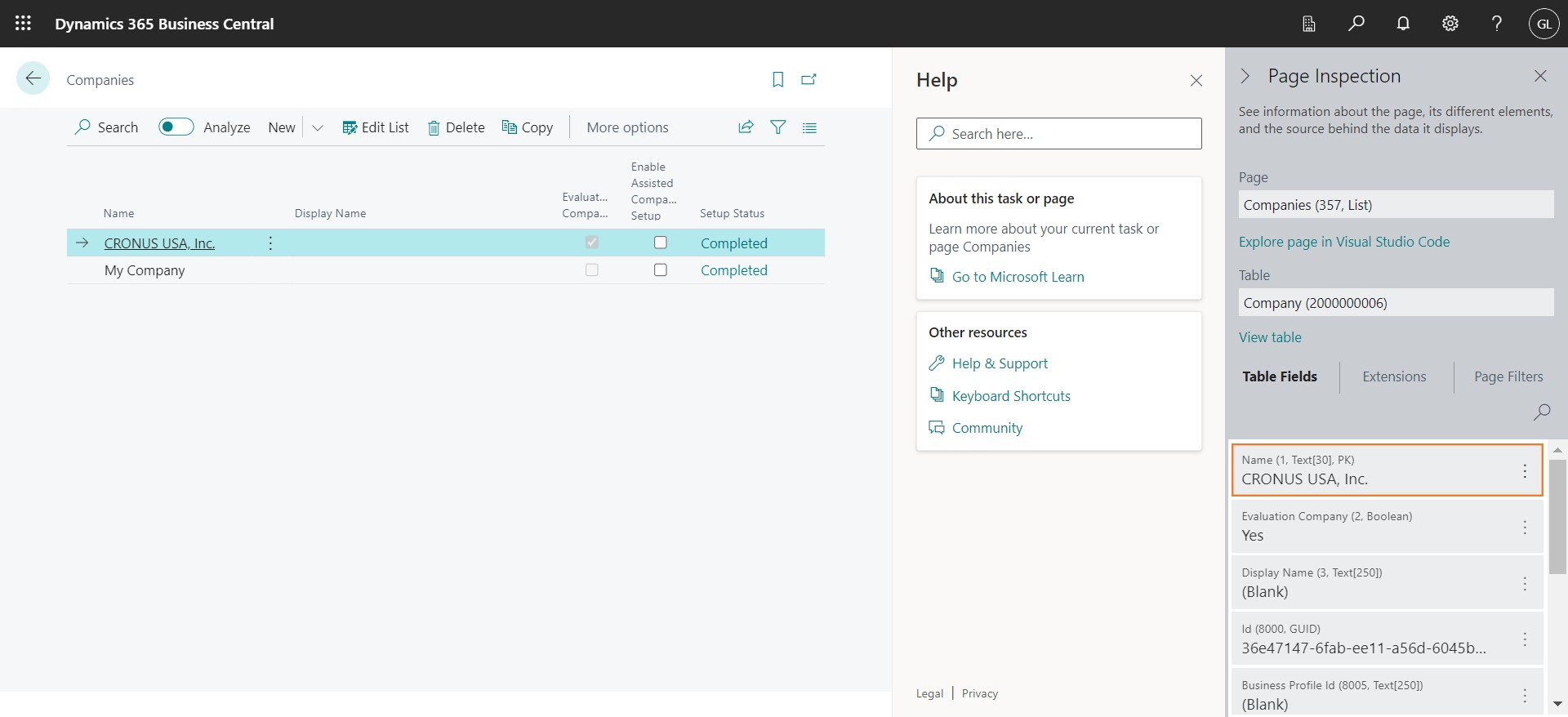
Copy the Company Id value
Create n8n.io Credential
At this point you must have identified the values for: Tenant ID, Client ID, Secret ID, Secret Value & Company ID
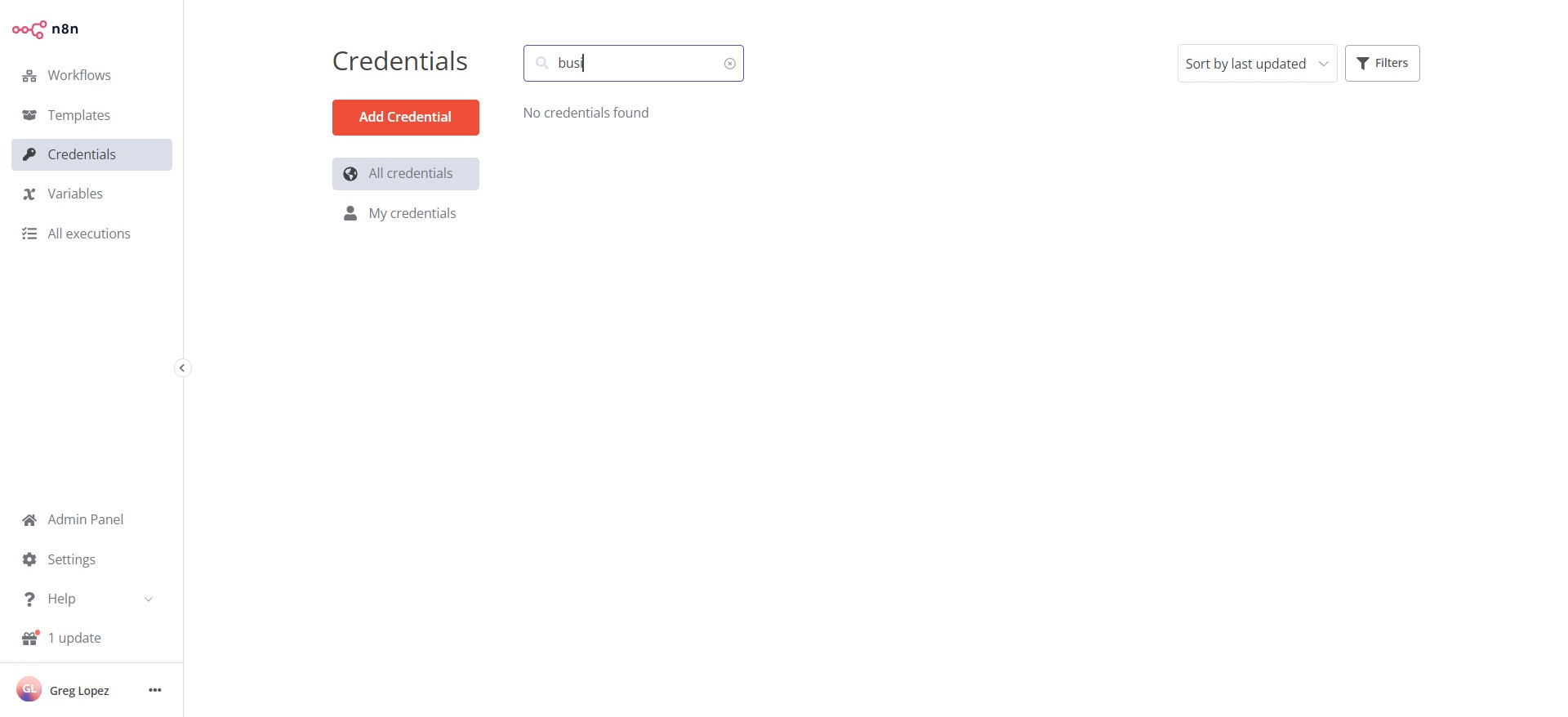
Go to n8n.io and click Credentials / Add Credential
Click on "OAuth2 API" 🔍
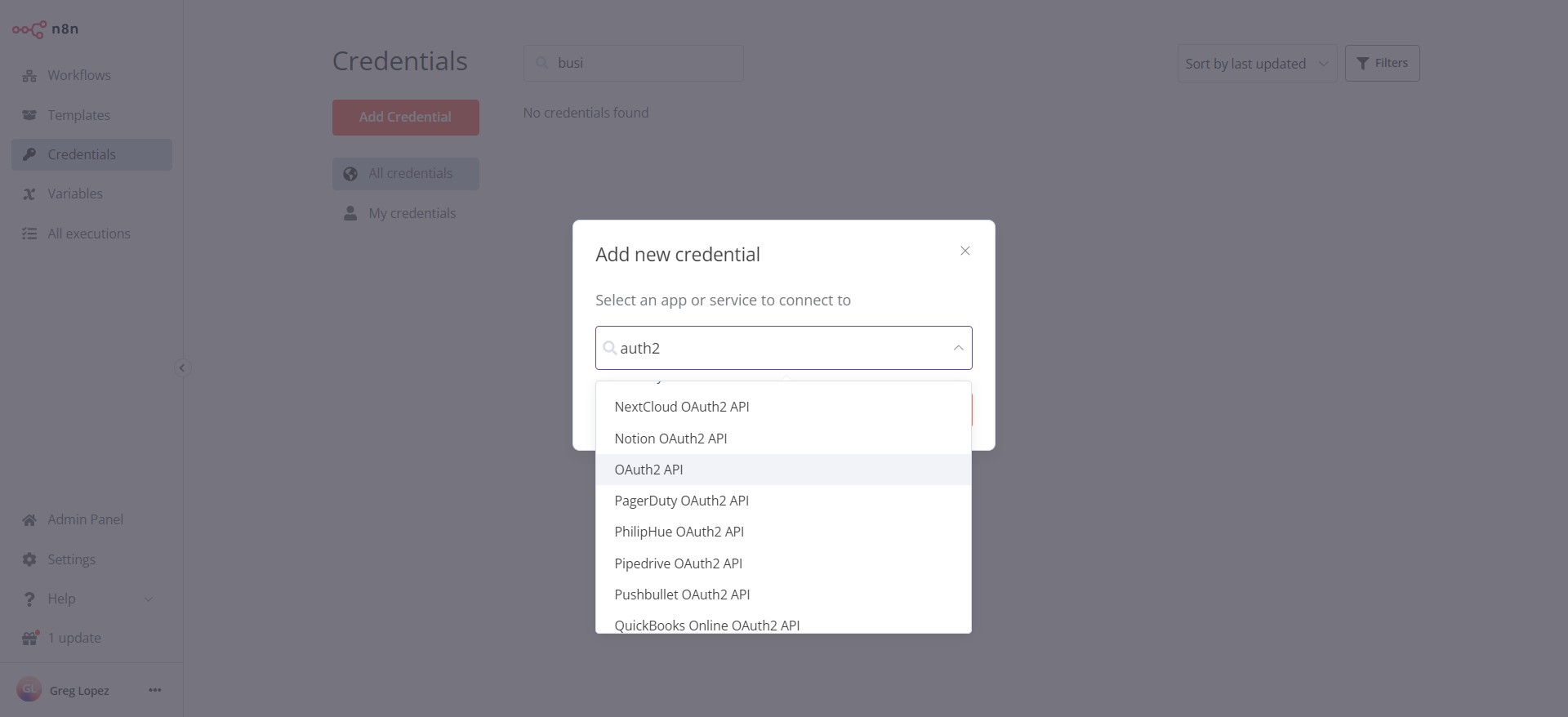
Click on "Continue"
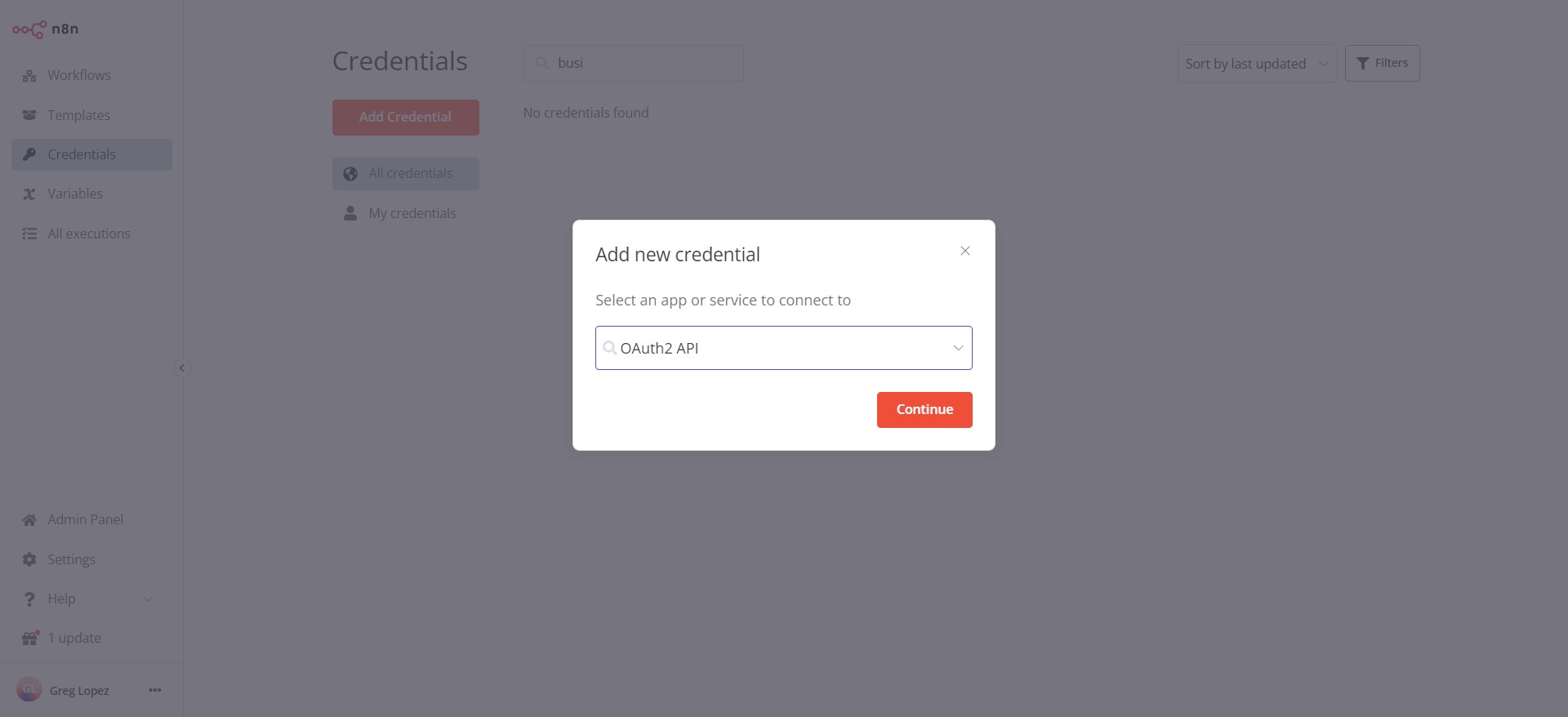
Set a credential name
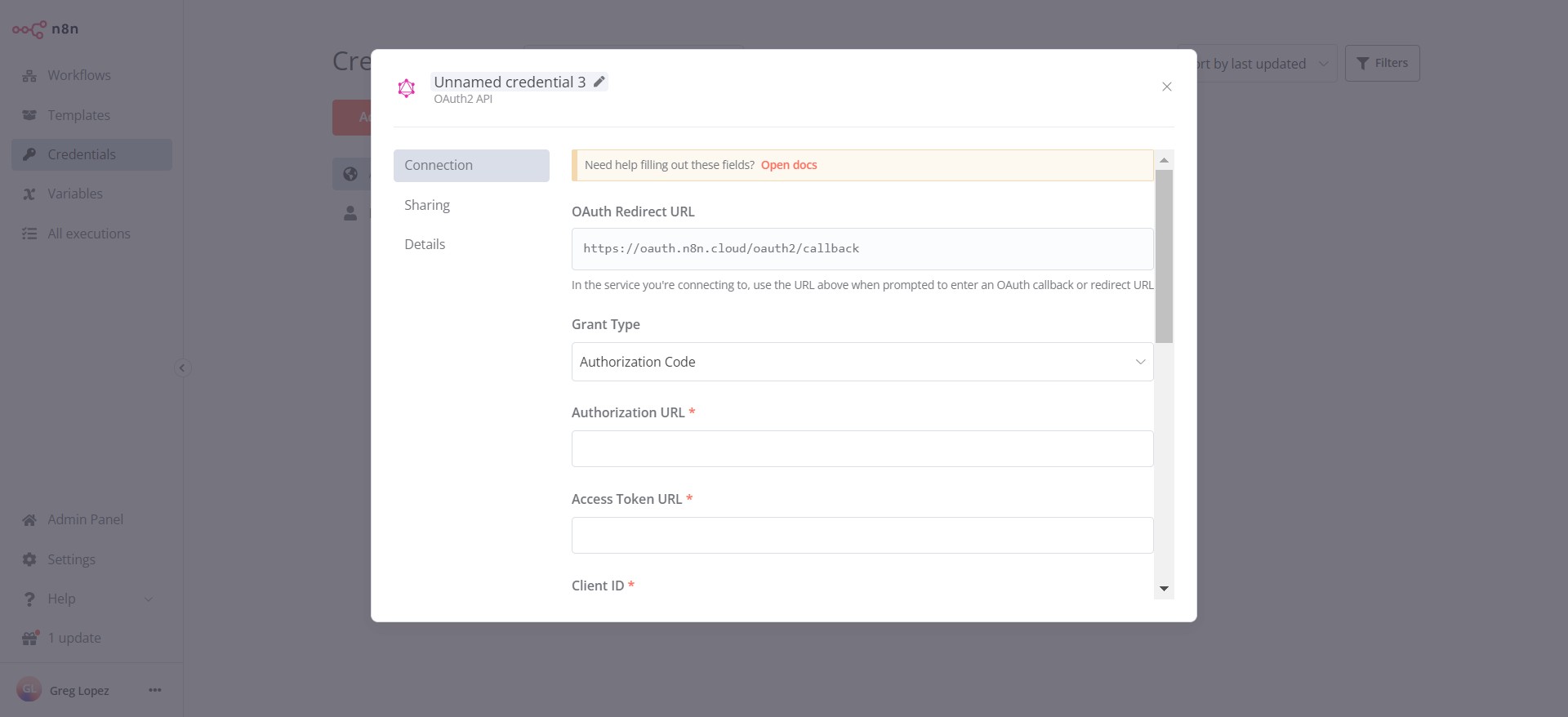
Enter below details ⌨️
Grant Type: Client Credentials
Access Token URL https://login.microsoftonline.com/{tenandId}/oauth2/v2.0/token
Client ID {ClientId}
Secret Value {Secret Value}
Scope https://api.businesscentral.dynamics.com/.default
Authentication Body
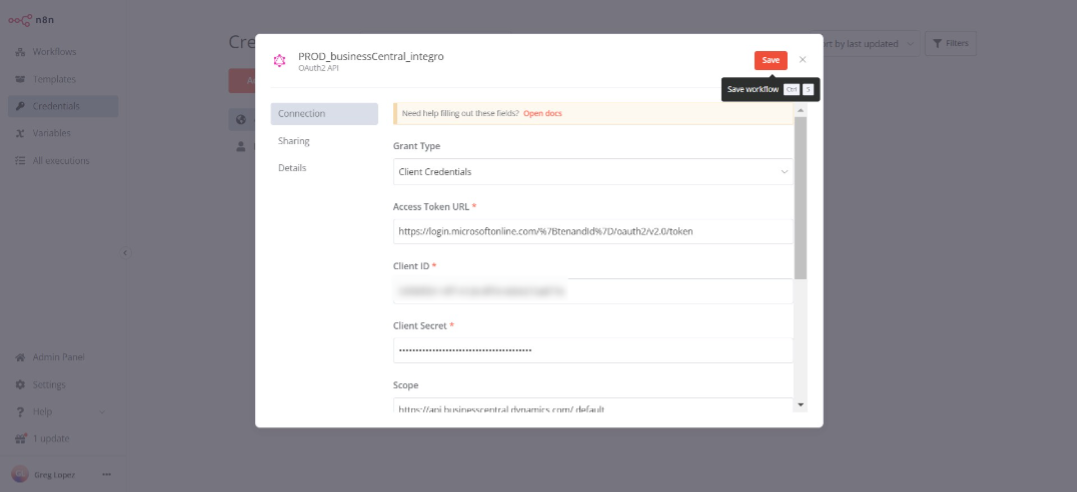
Credential successfully created ✅